Form submissions
View answers submitted from interactive form cards on the dashbor (form respons).
Form answers from chat appear in form respons on the dashbor (the Form responses menu). Form respons is separate from the chat inbox so each submission can be reviewed as one record. Sidebar guide: Automation → Form → Form responses.
To create and send cards: Create & send in chat or the Forms journey.
The flow
- 1Submit in chat
The filler taps Submit on the card. Answers also appear as a Q: / A: text bubble when write is enabled (default).
- 2Open form respons
Dashbor → sidebar Form respons (Responses). Lists submissions from your chat cards — not invite guest forms.
- 3Filter & search
Chips All, Unread, or Read; filter by form or @username.
- 4Open detail
Tap a row → full answer overlay. Marked read automatically when detail opens.
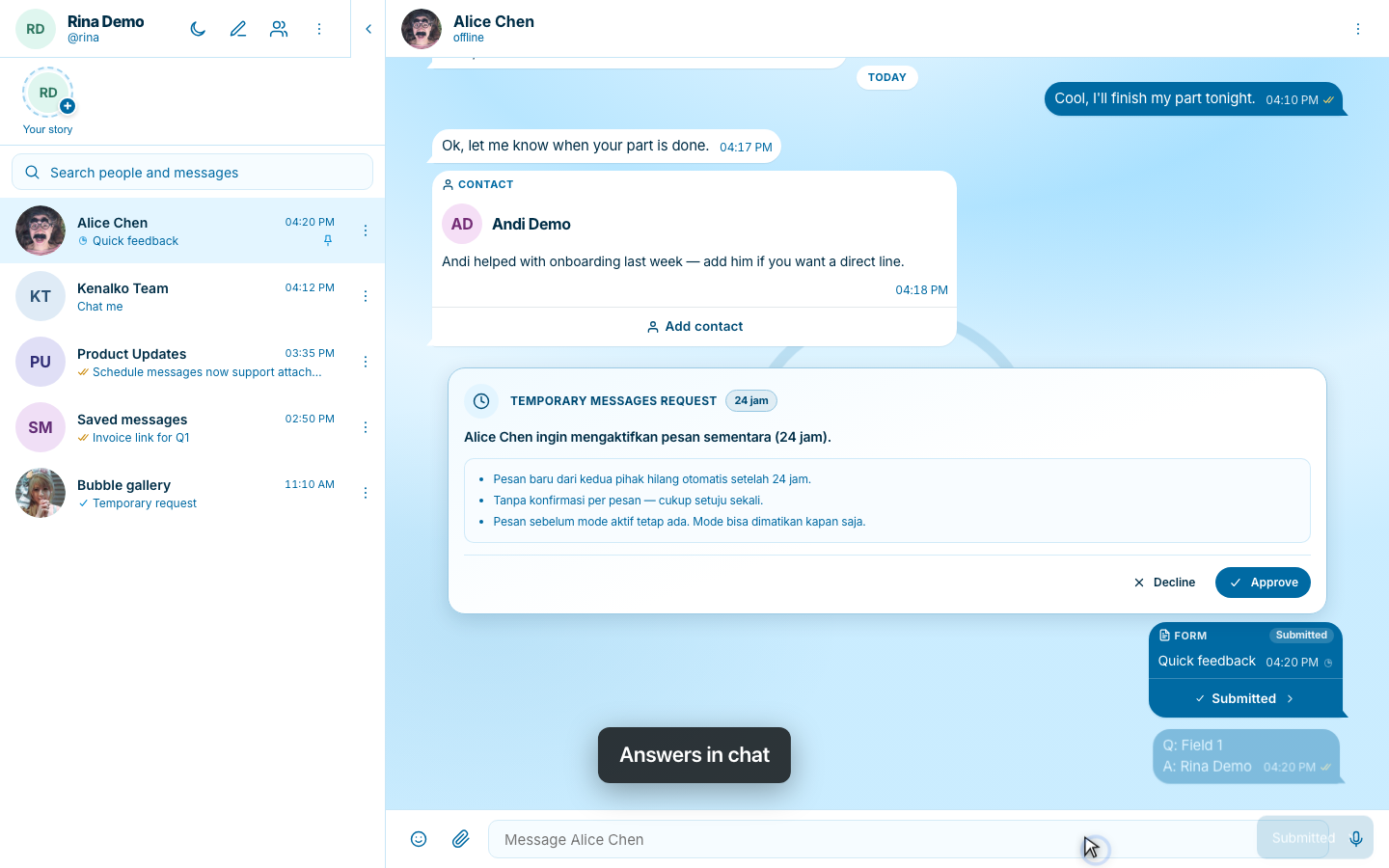
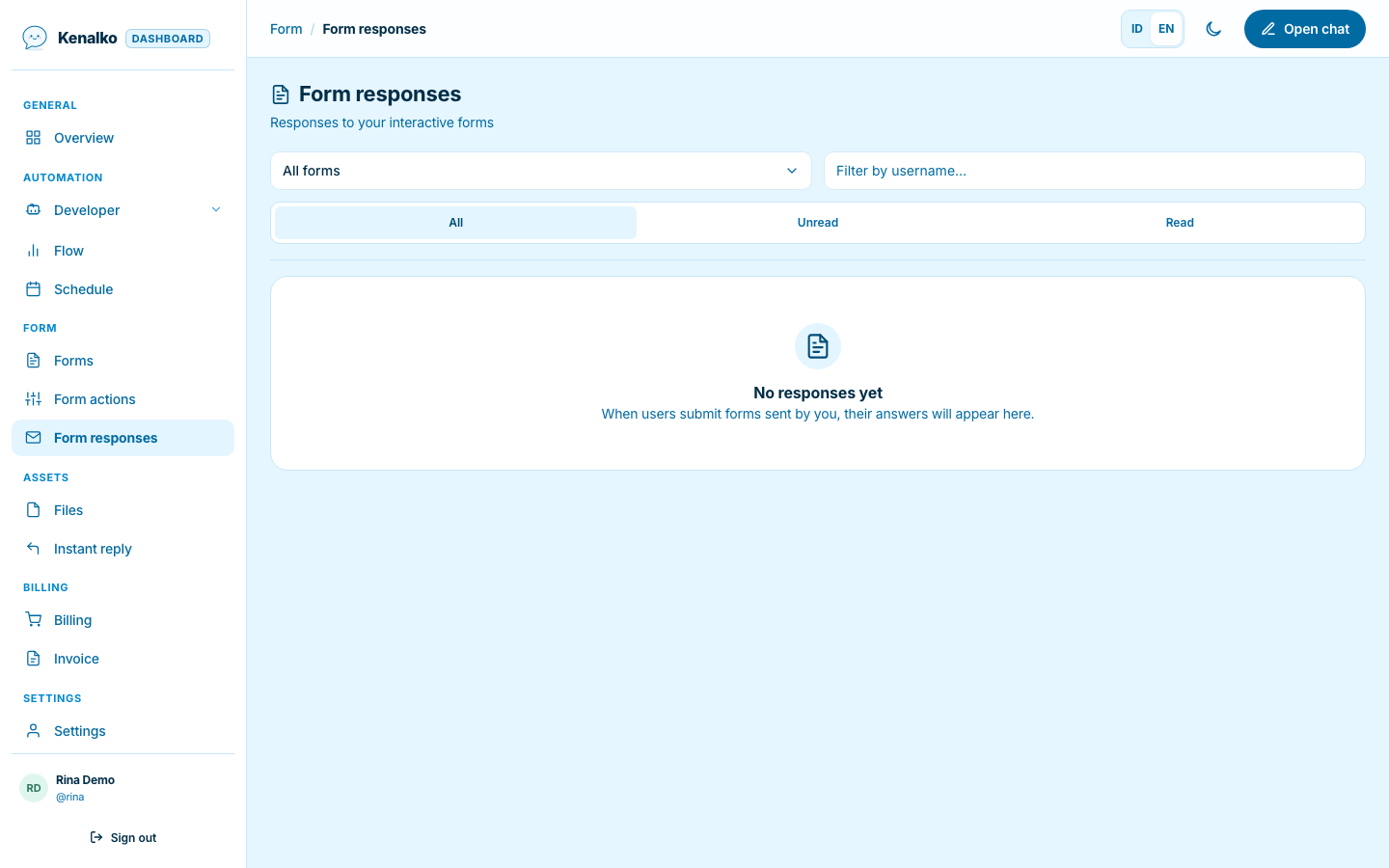
Left: answers in chat (write bubble). Right: the same submission in form respons — header unread badge tracks unread rows.
Step-by-step demo: Q/A bubble → form respons → submission detail. Create & send cards are on Forms.
View answers
- Open https://dash.kenalko.com.
- Choose Form respons (Responses).
- Choose a form or search for a submitter.
- Choose a row to open the full response.
- Close detail — the row is marked read (no separate button).
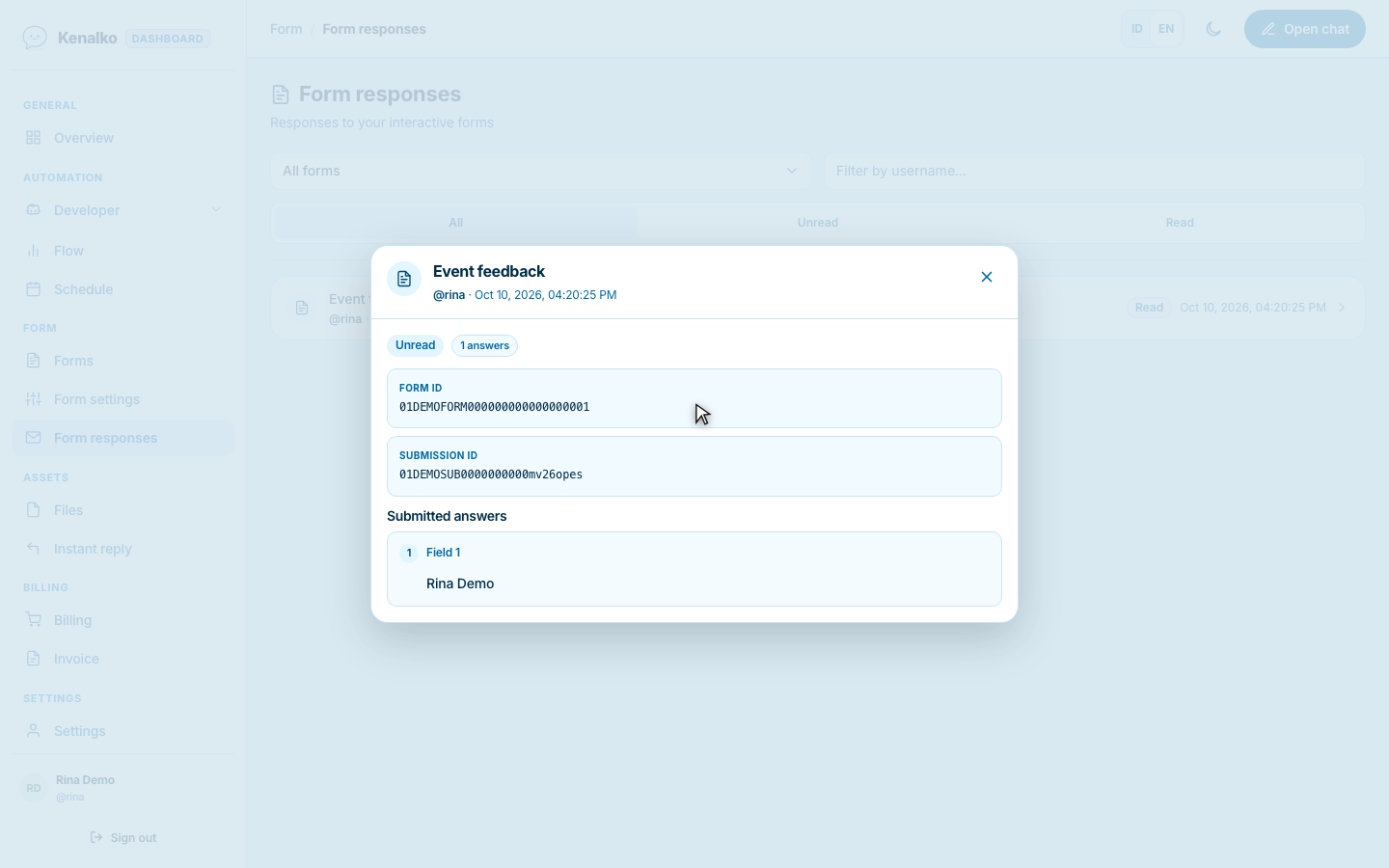
Detail shows submitter (@username), form, time, and each field value.
On the recipient side
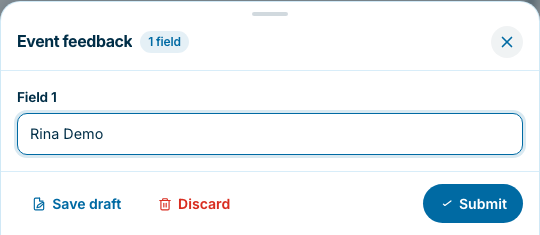
The recipient taps Fill form on the card in the thread, completes the fields, then Submit. Answers also show in a text bubble (Q: / A: lines) besides the card success state.
Form respons does not replace the chat bubble; both reflect the same submission. To follow up in conversation, open the related chat in the chat app.
Form respons is a dashbor feature and is not managed from the mobile chat app.