Forms overview
Create forms on the dashbor, send as chat cards, read answers under Form responses.
Create a Form once on the dashbor (Forms in the sidebar), send it as a chat card, recipients fill it in, then read answers under Form responses. Guest questions on an Invitation link are not this feature. When you build supported fields, you can set a Default value from a fixed value, the filler’s latest answer on another form, or a file from Files. Choose Fixed so the value cannot be changed in the card.
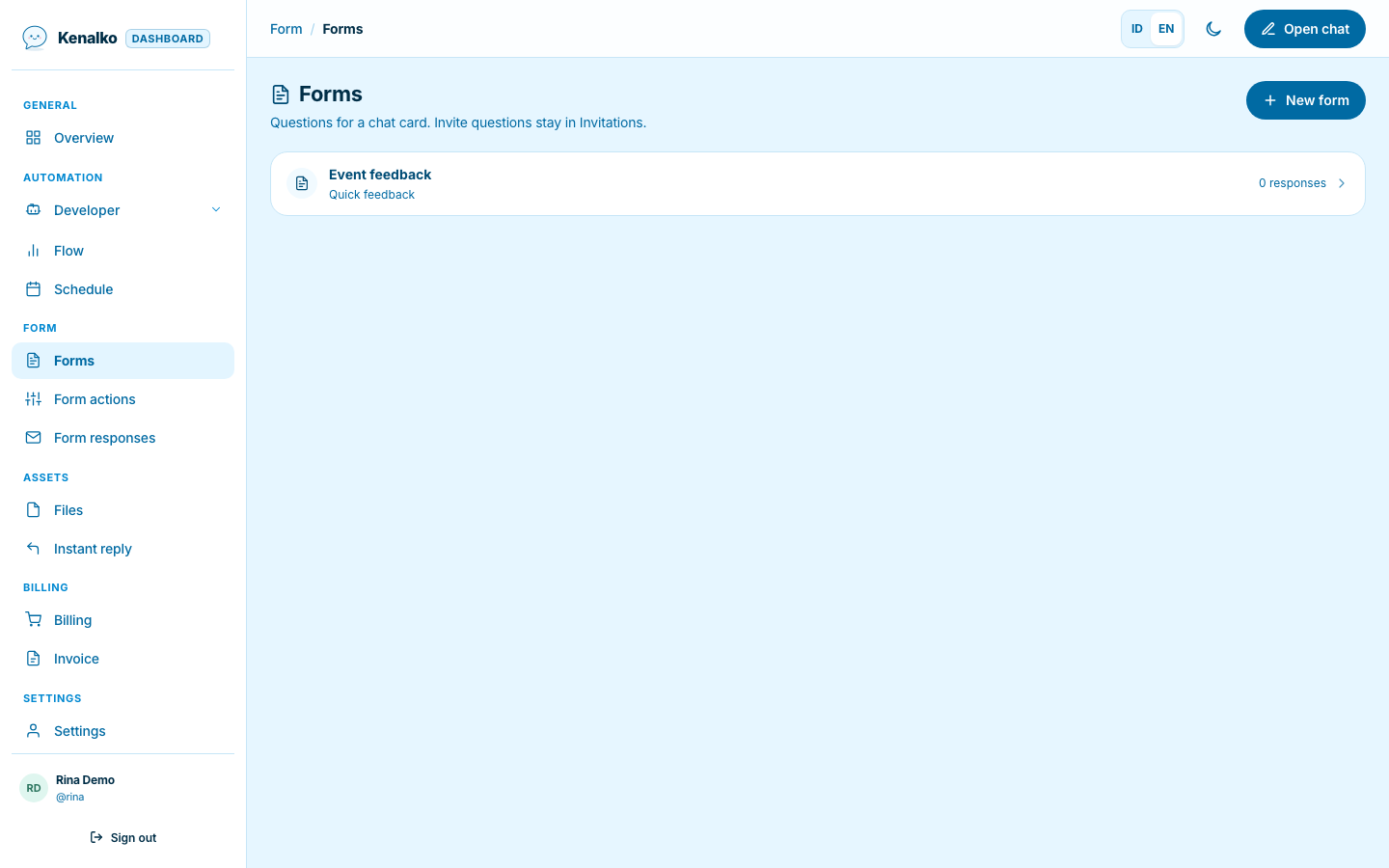
Forms menu — card definitions. Separate sidebar Form actions for sequence, timing, max, and HTTP after submit.
Demo walkthrough: create form → send in chat → fill card → Q/A bubble → check Form responses. Slow pace; captions + cursor.
At a glance
- 1Create & send
New form on dashbor → chat composer Attach → Form. Details: Create & send in chat.
- 2After submit
Sequence, timing, max, HTTPS — Form actions.
- 3Read answers
Sidebar Form responses — Form responses.
Only registered accounts create/send forms. Guests can fill cards they receive. Button/list cards are not built in Forms — see Flow → Send step.