Form responses
Submissions from chat cards — filters, detail, and read state.
1 min read
Form responses (dashbor sidebar) lists answers from form cards in chat — separate from the inbox so each submission is one row. Guest invitation answers are not here.
Start with Create & send in chat if you have not sent a card yet.
Step by step
- 1Send & fill in chat
Recipient completes the card and taps Send. Q: / A: bubbles appear when write is on.
- 2Open Form responses
Dashbor → sidebar Form responses.
- 3Filter & search
Chips All, Unread, Read; filter by form or @username.
- 4Detail & delete
Tap a row → full answer overlay (marked read when opened). You can also delete a response from the detail dialog to free 1 capacity slot.
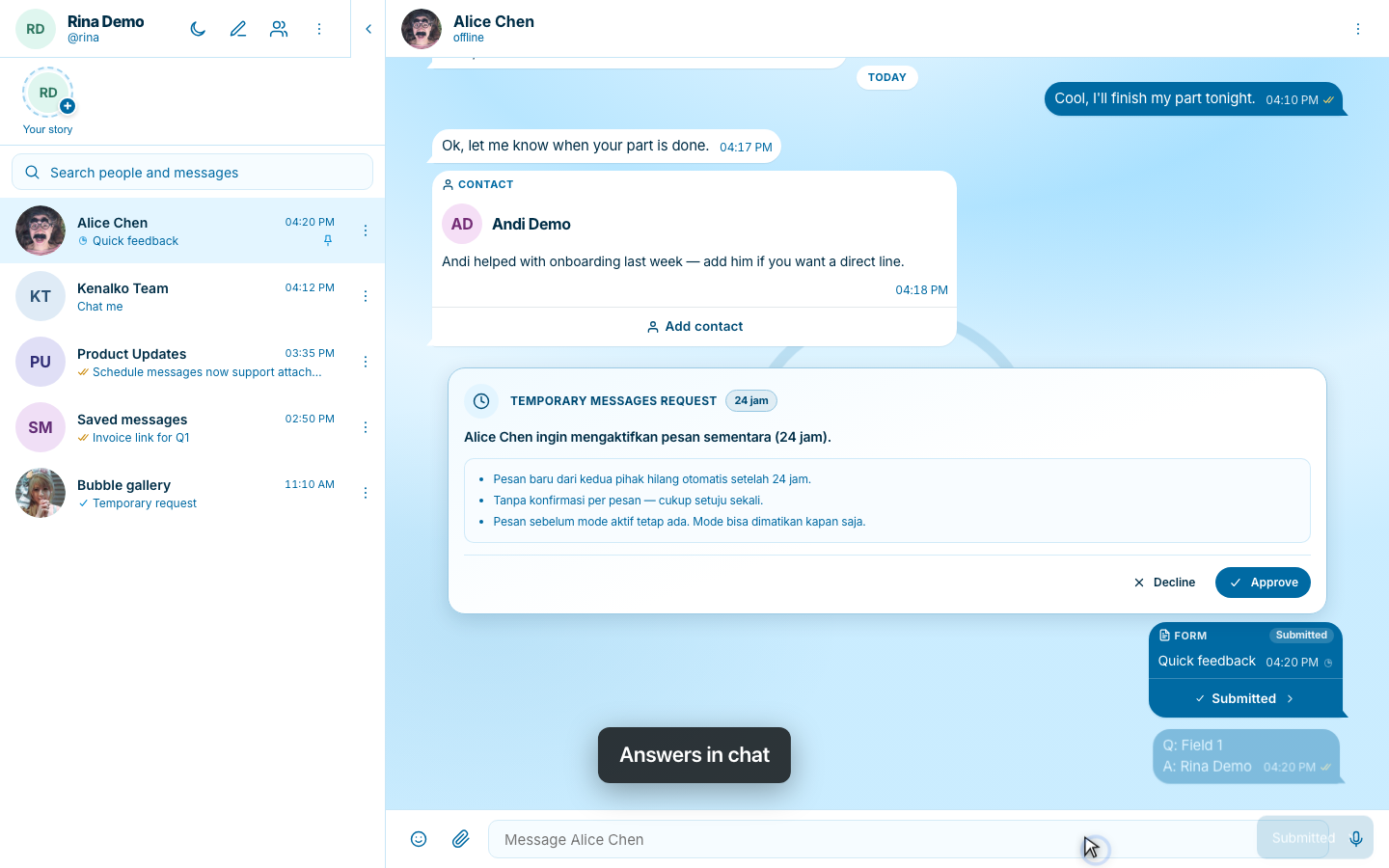
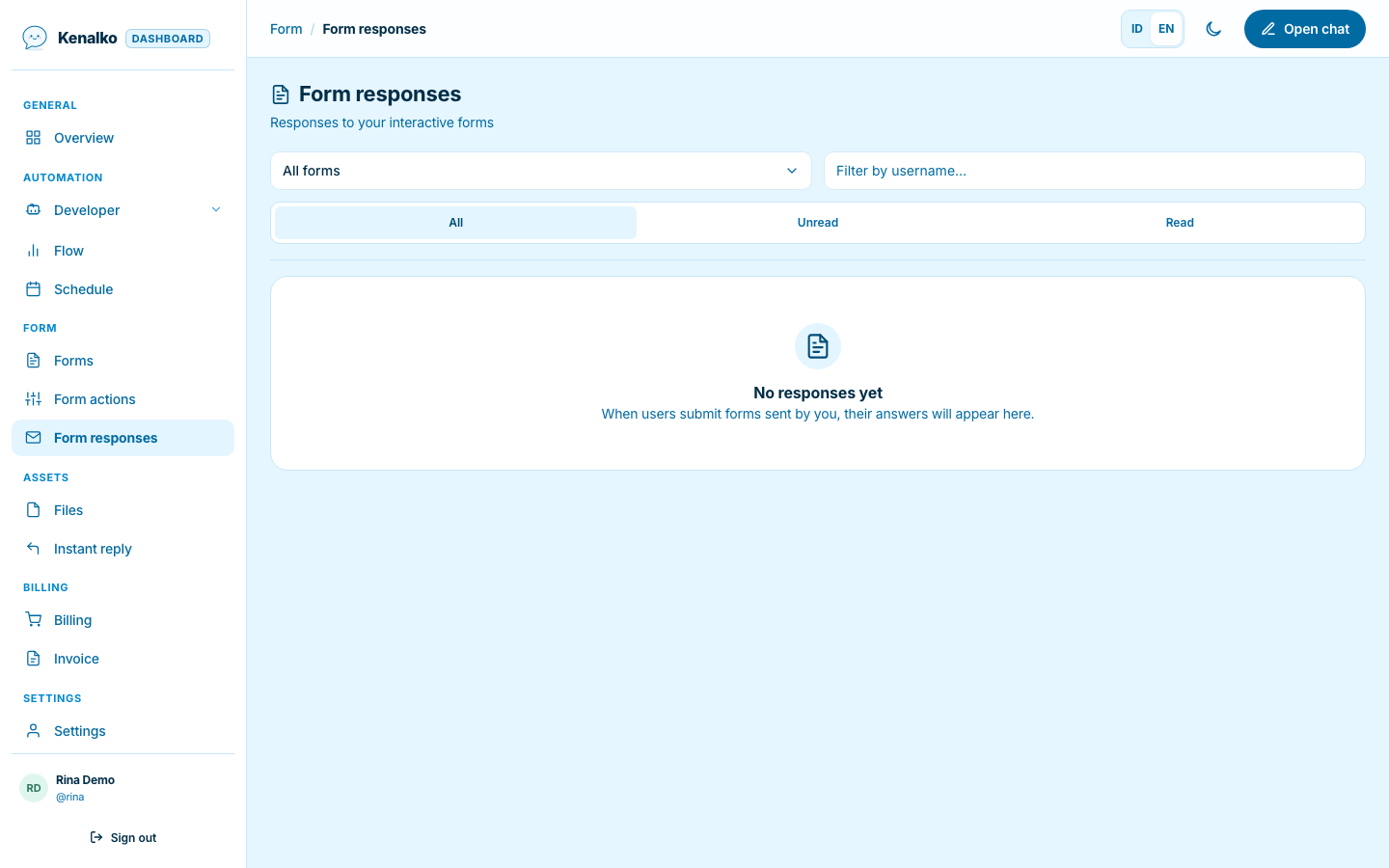
Left: chat bubble. Right: same entry under Form responses.
Demo: Q/A bubble → response list → submission detail.
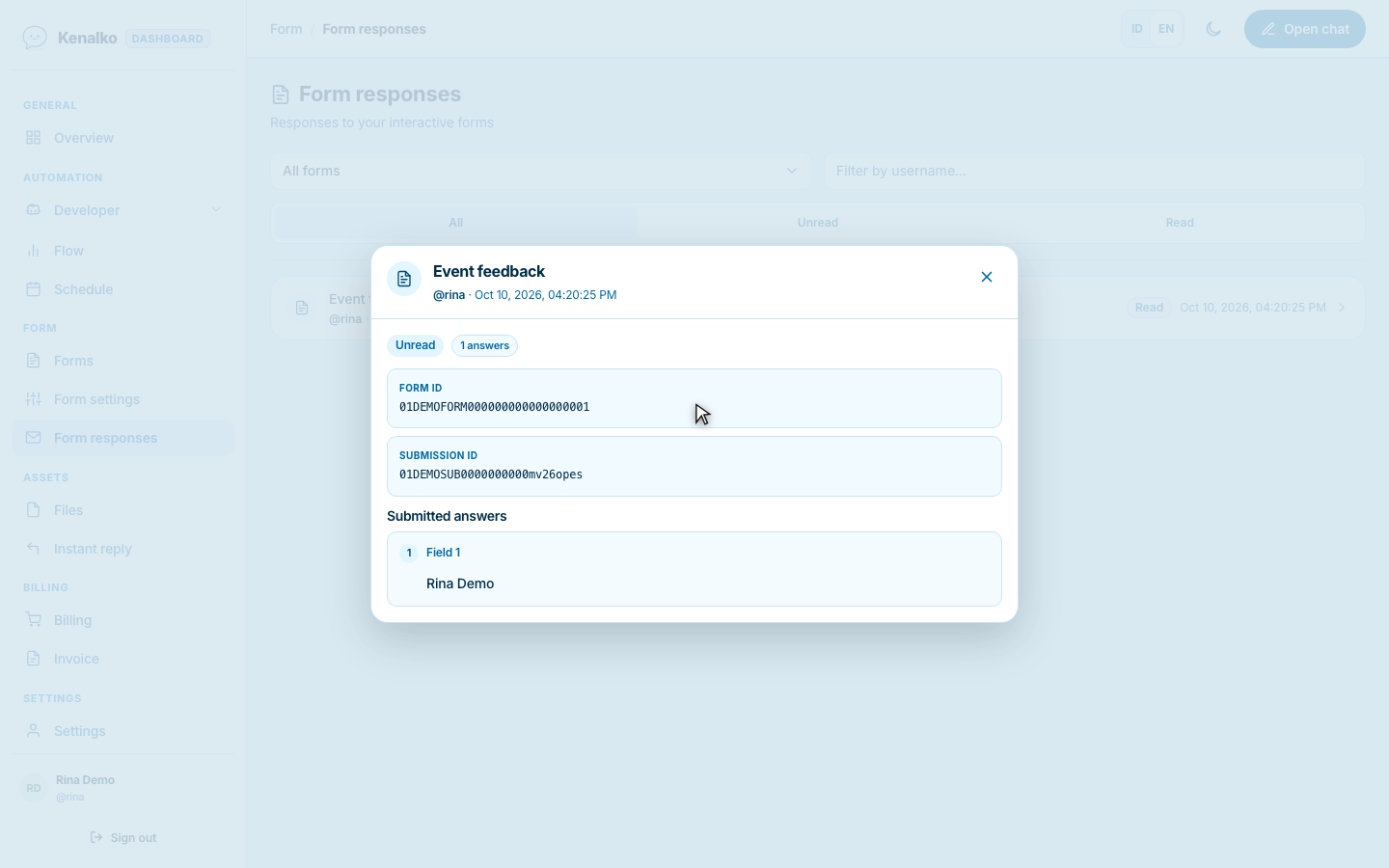
Sender (@username), form, time, and each field value.
Form responses do not replace chat bubbles; both show the same submission. This menu is dashbor-only (not the mobile app).