Send step
Send messages from Flow — destination chat, content types (text, attachment, form, poll), Files, and send quota.
The green Send box delivers chat messages as your account when the flow reaches that step. By default the message goes to the same chat as the triggering event — like replying from the dashboard.
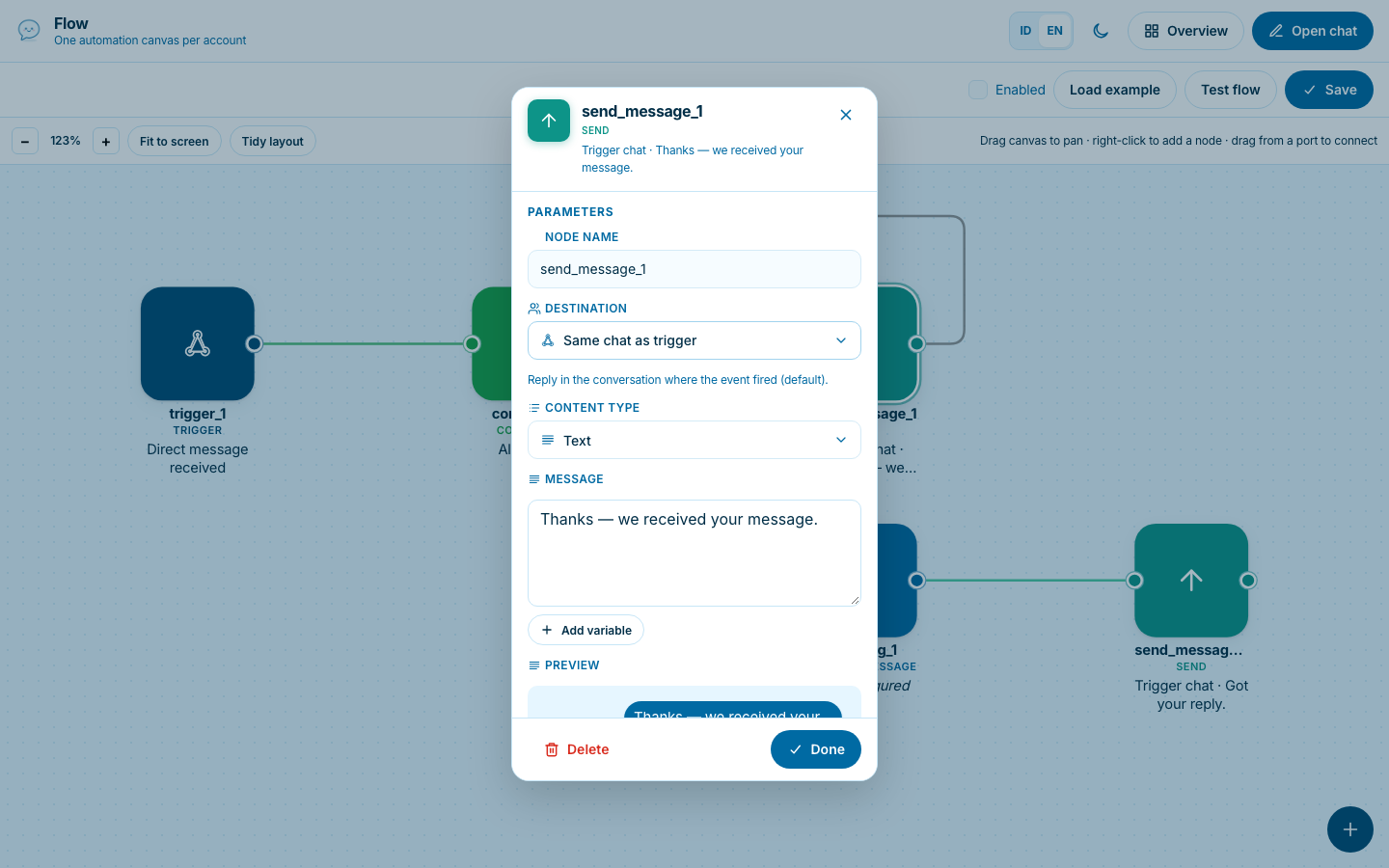
Click a Send box on the canvas → set Destination, content type, then Done. Save the canvas after editing the graph.
How to configure
- 1Open the panel
Click a green Send box (message icon).
- 2Destination
Trigger chat (default) or a fixed list of chats.
- 3Content type
Text, attachment, poll, form, button/list card, location, or introduce.
- 4Done & Save
Close the panel, then Save on the Flow toolbar.
Destination
| Dashboard choice | When to use it |
|---|---|
| Same chat as trigger | Auto-reply in the thread that started the flow (most common). |
| Choose chats | Send to one or more fixed chats — e.g. internal alerts or forward to another group. |
Choose-chats mode needs at least one valid target (personal contact, group, or channel from the dashboard picker).
Content types
- 1Text
Plain message; you can insert data from other steps — see Variables & templates.
- 2Attachment
Pick from Files or upload in the panel; multiple files = several bubbles in order.
- 3Poll
Fixed question and options like chat or schedule, or enable Options from variable after an HTTP step — pick the node, then an array field (strings or objects with a title). Limit, live/final results, and editable votes stay in the panel; close time is not set on Flow — the poll closes automatically 24 hours after it is sent.
- 4Form
Pick a form created under dashboard Forms — do not paste form JSON on the node.
- 5Buttons / List
Interactive cards; button or row ids feed Condition steps or webhooks. For buttons, enable Use variable for buttons; for lists, enable Use variable for list rows. Each section has a title and its own rows array variable; use Add section for multiple groups. Map object fields for id and title once when needed — see Variables & templates. One **Show choice as chat message** checkbox (off by default) sets **write** for every reply button or list row. Row taps use the same postback fields as buttons (action id, label, card name) in conditions and webhooks.
- 6Location
Coordinates and pin label.
- 7Introduce
Contact, group, or channel intro card.
- 8Kenalko Apps
Pick a published app from the dashboard — fullscreen card; opener Flow variables apply on open. Create & send.
Forms from the library
The Send node stores a form reference only (a form you already built on the dashboard). At run time Kenalko sends the full form card to chat — same as attaching a form from the chat composer. When a library field uses From Flow variable for defaults or for Options, map each field on the send node — preset values or a JSON array of choices are filled at run time, not in the form definition. Create forms: Forms on the dashboard · Journey.
Attachments & Files
Upload with Upload in the send panel; files live in Files and are used on run. Finish uploads before closing the panel when prompted. Files you remove from a node are not auto-deleted — manage them in Files if needed.
Send quota
Each successfully delivered bubble from a Send step uses one API send quota — the same pool as API sends and Schedule. Check remaining quota under Billing.
Messages sent by Flow do not fire “message received” triggers again — that prevents endless bot loops.