Triggers & events
Which events can start Flow — the Trigger box uses the same list as Developer webhooks.
The Trigger box answers: “When does the flow start?” You pick one event in the settings panel. The list on the canvas is the same as the events you can enable under Developer → Webhook — Flow runs your canvas steps; webhooks POST JSON to your server.
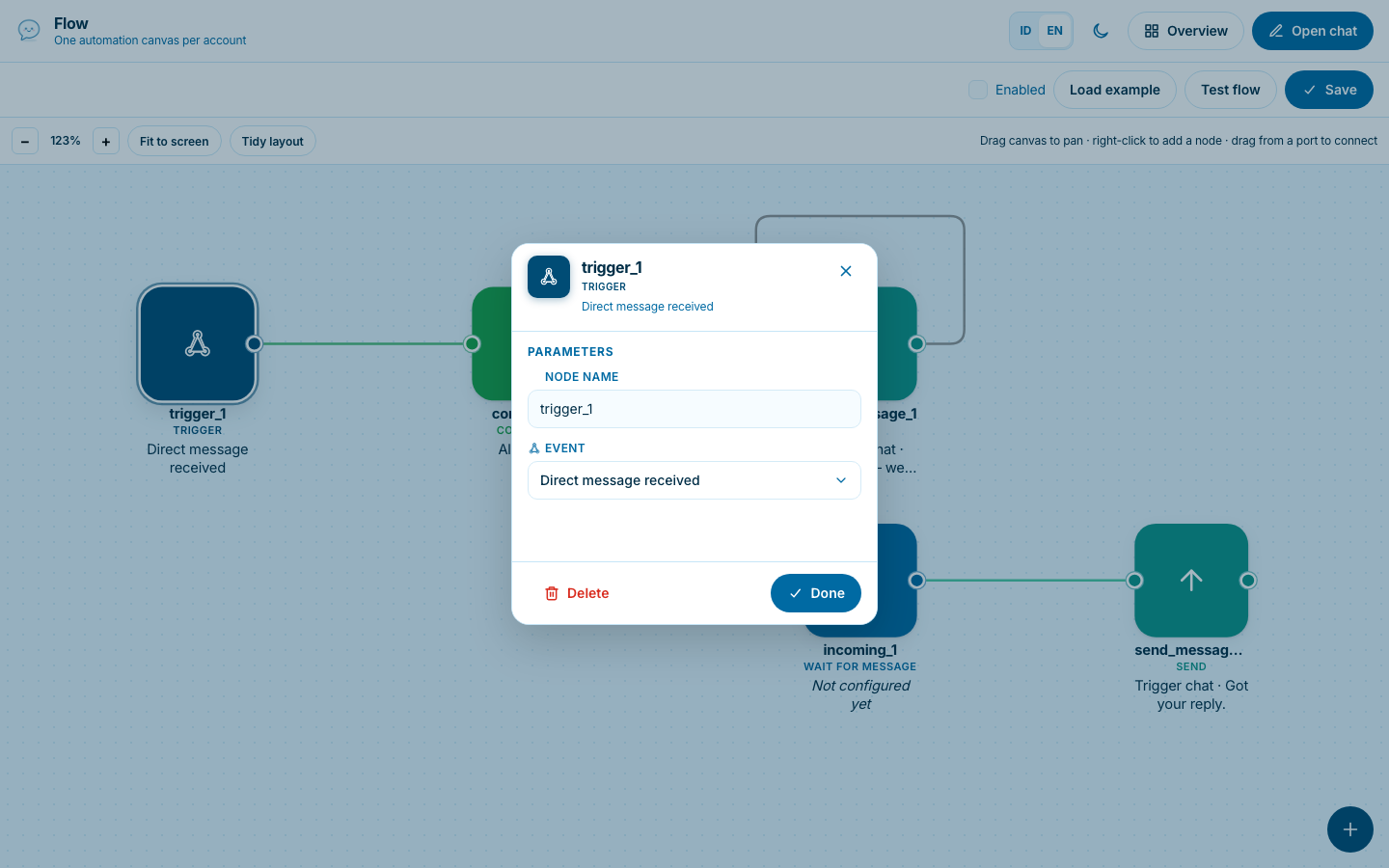
Click the Trigger box → choose an event (example: direct message received). Each event type may appear on one trigger only — see Flow step types.
How to choose an event
- Open Flow on the dashboard.
- Click the blue Trigger box (or add a trigger from + on the canvas).
- In the panel, pick an event — labels match the webhook screen.
- Wire the next steps (condition, send, HTTP, etc.).
- Save the canvas; turn on Enabled so paths can run.
Event list (canvas)
| What you pick (dashboard) | Event id |
|---|---|
| Direct message received | message.received.personal |
| Group message received | message.received.group |
| Channel message received | message.received.channel |
| Message sent to DM | message.sent.personal |
| Message sent to group | message.sent.group |
| Message sent to channel | message.sent.channel |
| Message delivered or read (personal DM) | message.ack.personal |
| Someone taps a button | interactive.postback |
| Someone submits a form | interactive.submit |
| Someone votes or re-votes on a poll | poll.vote |
| You joined a group/channel | member.joined |
| You left a group/channel | member.left |
| Handover (back to Flow) | handover |
The Handover row is canvas-only — it is not sent to Developer webhooks. It runs when the operator taps Handover in web/mobile chat. See Takeover & Handover.
The canvas offers granular choices (personal / group / channel) — not the legacy single message.received umbrella. View-once messages do not start Flow.
Trigger vs Condition step
| Trigger | Condition (IF) | |
|---|---|---|
| Role | Starts a path when the event happens | Filters after the path has started |
| Example | “Direct message received” | “Text contains help” |
| Duplicates | One event id per canvas | Many condition steps allowed |
Keyword, button, or form filters → use Condition or Branch, not a second trigger for the same event.
“Someone submits a form” trigger
When the event is Someone submits a form (interactive.submit), the dashboard may auto-add a form branch step first: All forms (one path for any submit) or Selected forms (one path per saved form). Details: Conditions & branches.
Wait for message vs new events
- Buttons, forms, polls, join/leave → only start a new path (when Flow is enabled and no wait step is holding the run).
- Wait for message resumes only on an inbound message (
message.received.*) in the same chat — not button taps or form submits. Model those with a separate trigger on the canvas.
More: Wait for message.
Need webhook JSON examples?
For HTTP integration (JSON fields, headers, signatures): How webhooks work, Events reference, Message types.