Conditions & branches
IF (condition) and Switch (branch) steps — filter messages, buttons, forms, polls, and auto form branches.
After a Trigger, you often need filters: “only if the text contains …” or “if button X was tapped”. The green Condition box is yes / no (two wires out). The purple Branch box is pick one path (many wires plus ∗ for everything else).
Condition (IF)
- One rule set → yes (green dot) or no (red dot).
- All rules or Any rule must pass (Match in the panel).
- Good for simple filters after a trigger or another step.
Branch (Switch)
- Ordered paths — first match wins (top to bottom).
- ∗ dot = fallback when no rule matches.
- Good for many scenarios (button A / button B / else).
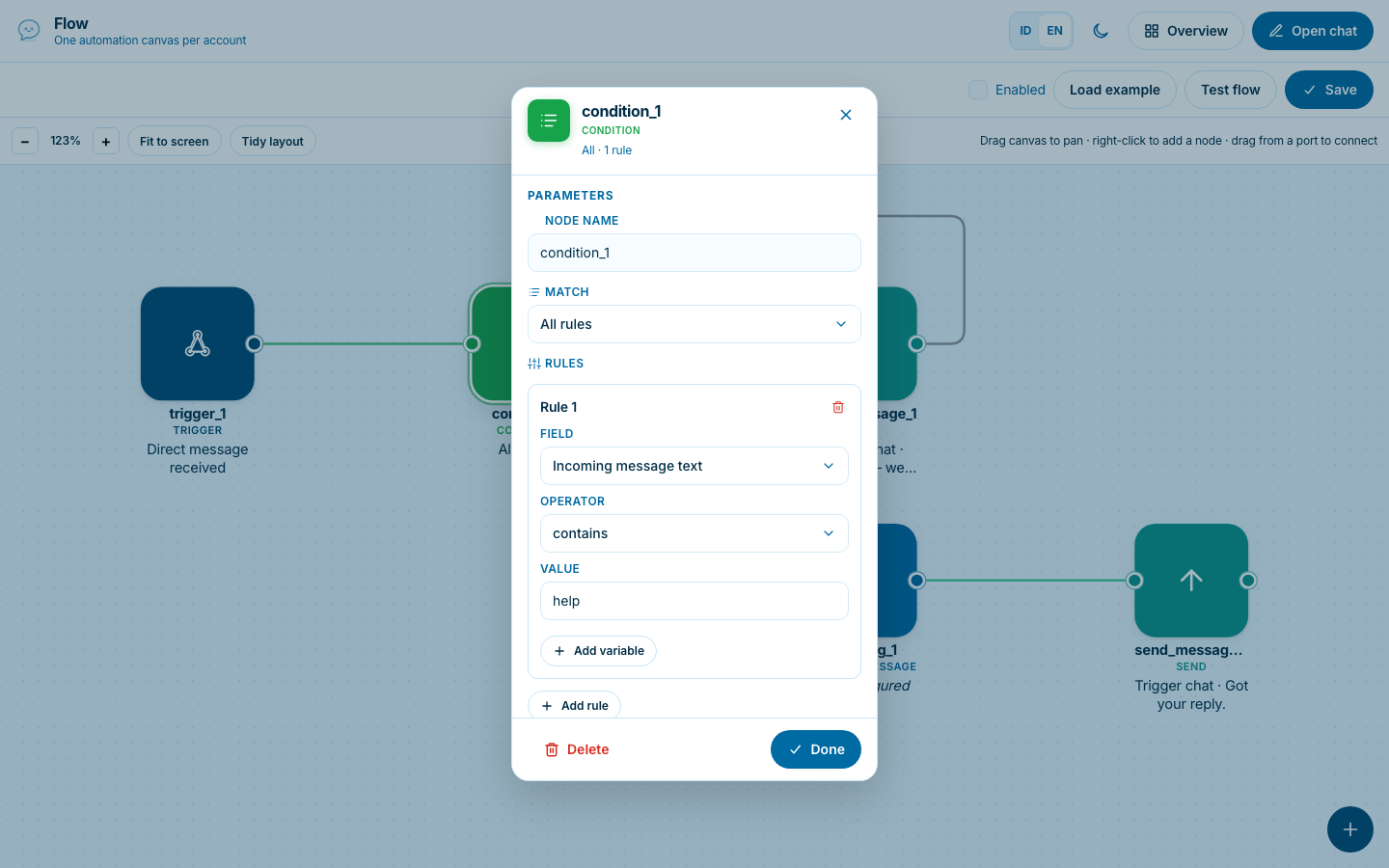
Condition panel — set Match, Field, Operator, Value, then wire the green/red dots.
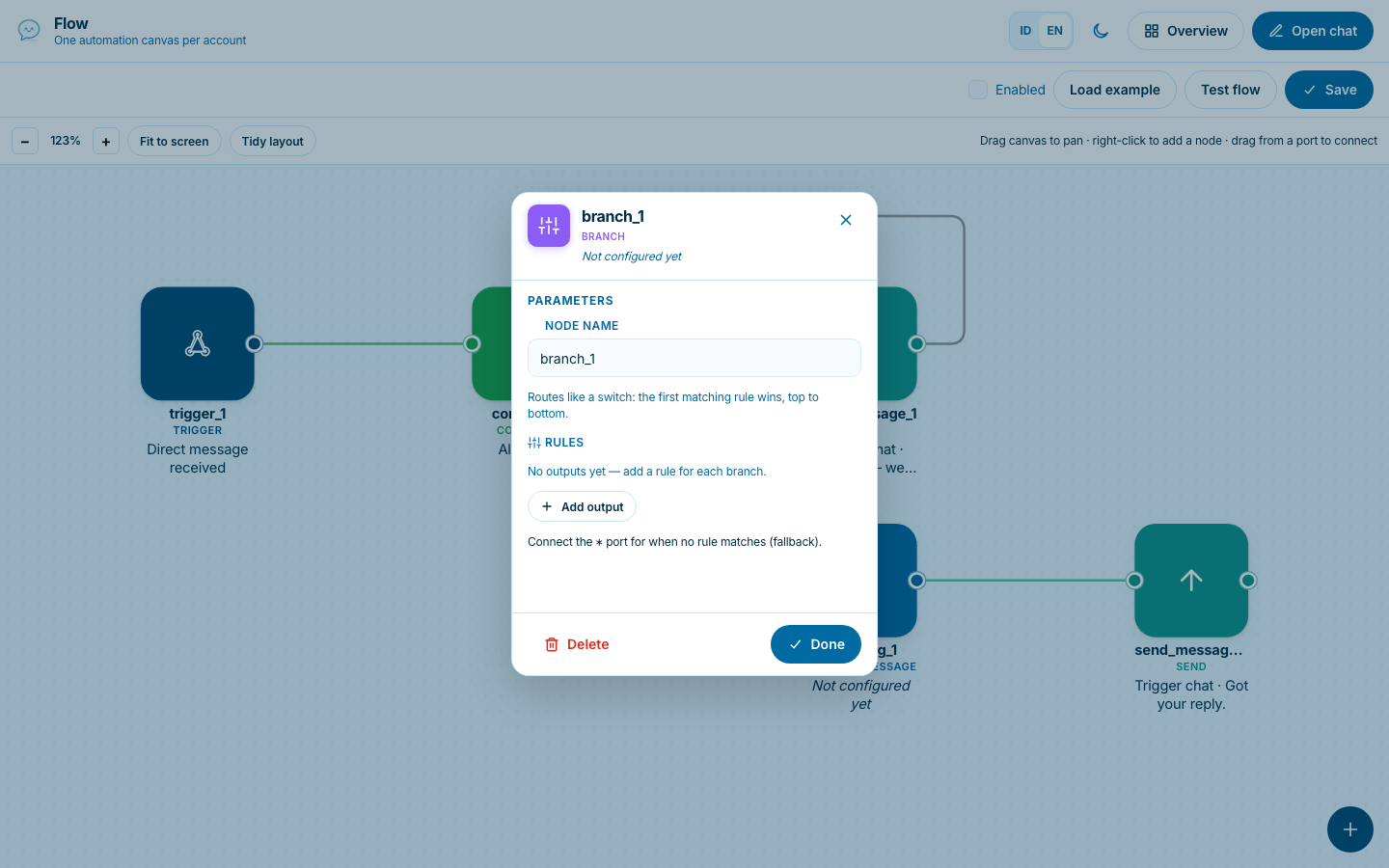
Branch panel — add an output per rule; wire ∗ for the default path.
Branch autofill (button / list)
On a manual Branch (not the auto form-library branch), Autofill from button/list creates one output per static reply row on the nearest upstream Send (button/list). Postback trigger → Incoming button action id equals row id; message received/sent triggers → Incoming message text equals row label/title. Dynamic HTTP-driven menus cannot autofill. Replaces existing rules.
Adding rules (Condition)
- Click a green Condition box (checklist icon).
- Choose Match: All rules (AND) or Any rule (OR).
- Add Rule rows — pick Field, Operator, and Value.
- Drag wires from the green (yes) or red (no) dot to the next step.
Values may use placeholders from other steps — see Variables & templates.
Operators (dashboard)
| Operator | Meaning |
|---|---|
| equals | Exact match (text or number) |
| does not equal | Not an exact match |
| contains | Text includes substring |
| does not contain | Text excludes substring |
| starts with | Text begins with… |
| is empty / is not empty | Field has content or not |
| greater than / less than | Numbers when the field is numeric |
The Field dropdown is filtered by your trigger and upstream steps (e.g. form fields appear only when the path involves a form submit).
What you can check
- 1Inbound message
Message text, message type, sender.
- 2Chat type
Personal, group, or channel.
- 3Buttons / list
Action id, label (visible button text), or card name (send-time
name— tellsconfirm1fromconfirm2when Yes/No ids repeat). - 4Forms
Which form was submitted and each field — only when your trigger/path is form submit.
- 5Poll
Selected options.
- 6HTTP
Status or body after an HTTP step on the same path.
- 7Run variables
Values captured from earlier steps.
Form answer fields are not filled when the trigger is only “message received” without a form submit. For forms, start from Someone submits a form or a path that carries submit data — see Triggers & events.
Form branch (form submit trigger)
When the trigger is Someone submits a form, the dashboard may auto-insert a form branch step:
| Mode | Meaning |
|---|---|
| All forms | One path for any form submit |
| Selected only | One path per library form; ∗ when none match |
The form list syncs from your dashboard Forms. Wires from a specific form port limit which fields appear downstream.
Conditions vs HTTP node
The HTTP step has its own success/failure paths (status code or JSON check). Condition / Branch are separate — you can still evaluate HTTP responses in rules after an HTTP step if needed.