Forms
Create forms in the dashbor, send them as cards in chat, then read answers in form respons.
Create a form once in the dashbor, then send it as a card in chat. Guest questions on an invite link stay under Invitations — not here. Automation sidebar guide: Form → Overview.
The flow
- 1Create in the dashbor
Open Forms → New form. Each form name is unique on your account. Build questions in the editor.
- 2Send in chat
Composer → Attach → Form (Send form sheet) → pick a form. A new card bubble appears in the thread.
- 3Fill & submit
Tap Fill form, complete fields, then Submit. The card shows success; answers also appear as a text bubble (Q: / A: lines) when write is enabled (default).
- 4Read answers
On the dashbor → Form responses. See Form responses (sidebar) or Form submissions (journey).
For supported fields, open Default value and choose a Fixed value, the filler’s latest answer from another form, or a file from the Files library. Choose Fixed when the filler must not change that preset in the card.
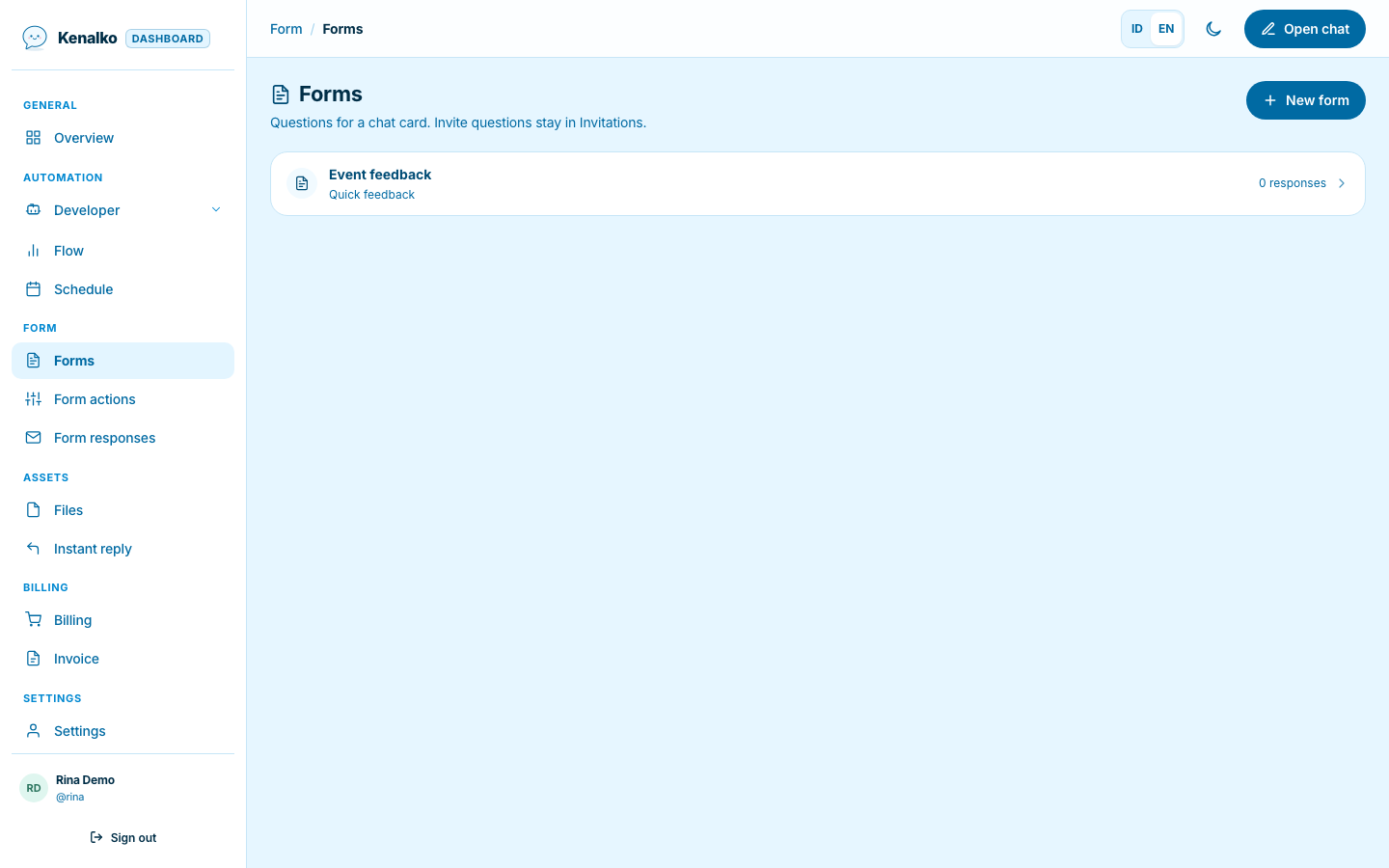
Forms on the dashbor — chat card definitions. Form actions (sidebar) sets sequence, timing, caps, and HTTPS after submit — see Form actions.
Slow step-by-step demo: create on dashbor → send in chat → fill the card → answers in a bubble → check form respons. The Send form sheet only appears while picking from Attach.
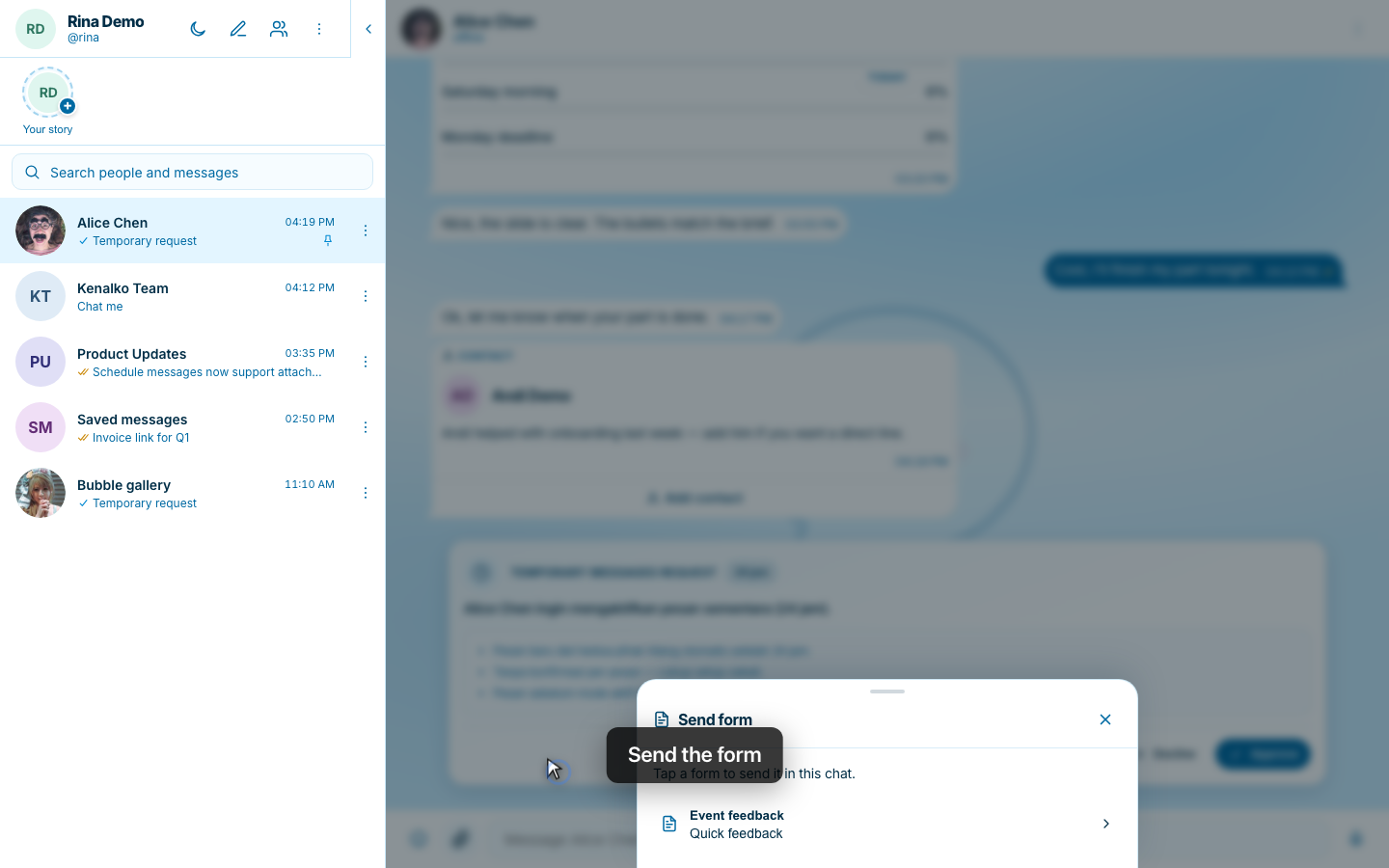
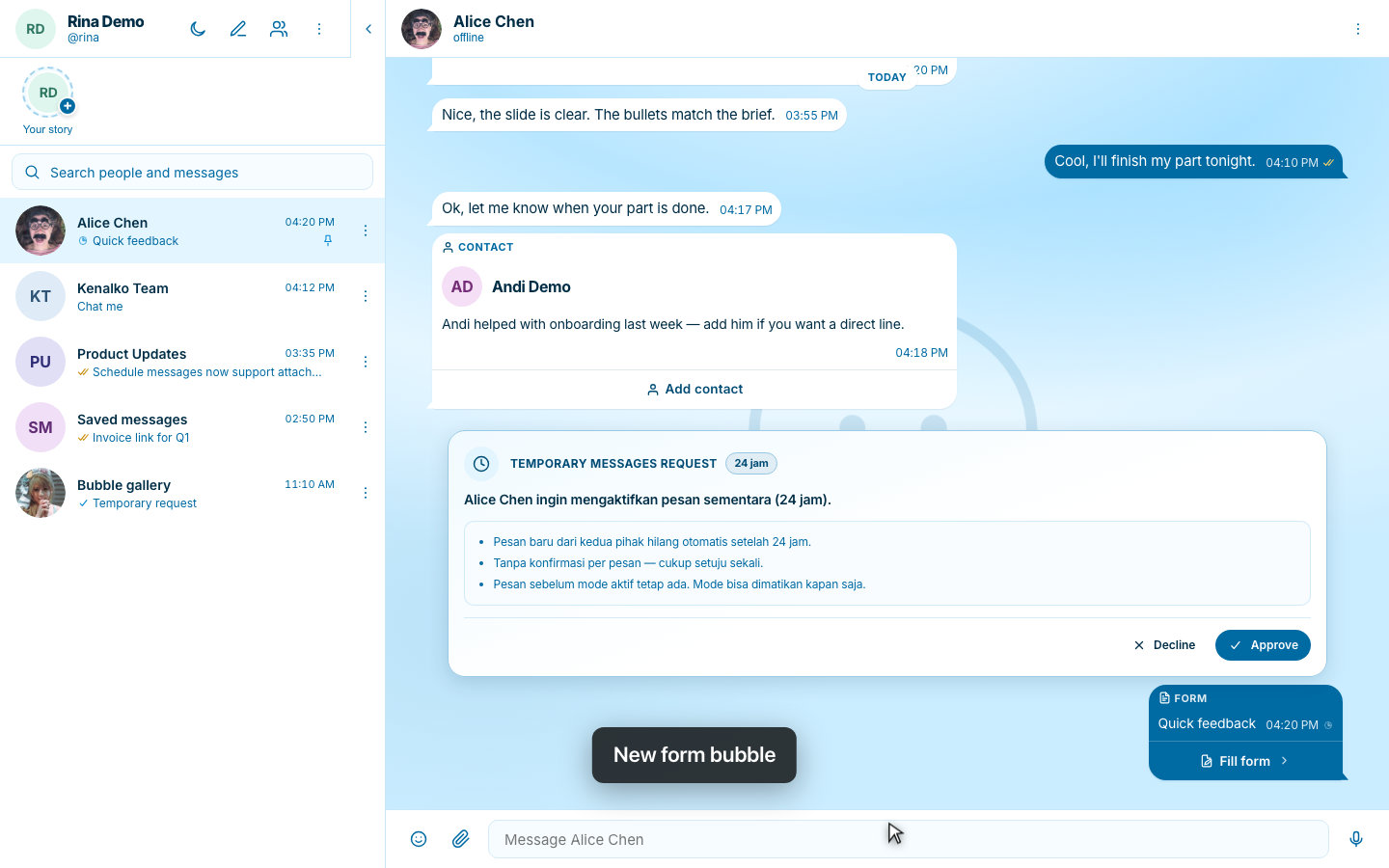
Composer → Attach → Form → pick a saved form. After you pick, the sheet closes and the card shows questions frozen at send time.
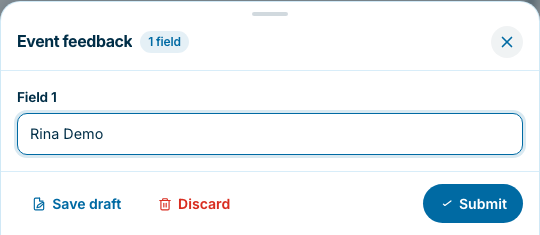
Fill form opens a bottom sheet. Complete the fields, then Submit — see Form submission for responses.
Who can do what
Only registered accounts can create and send forms.
Guests can fill in form cards sent to them.
Interactive buttons and option lists are not built in the Forms menu. The API sends saved forms the same way as chat.