Schedule
Screen reference — /schedule (dashboard).
1 min read
Schedule (/schedule) — Upcoming/Past chips, New schedule, list + detail overlay (UTC).
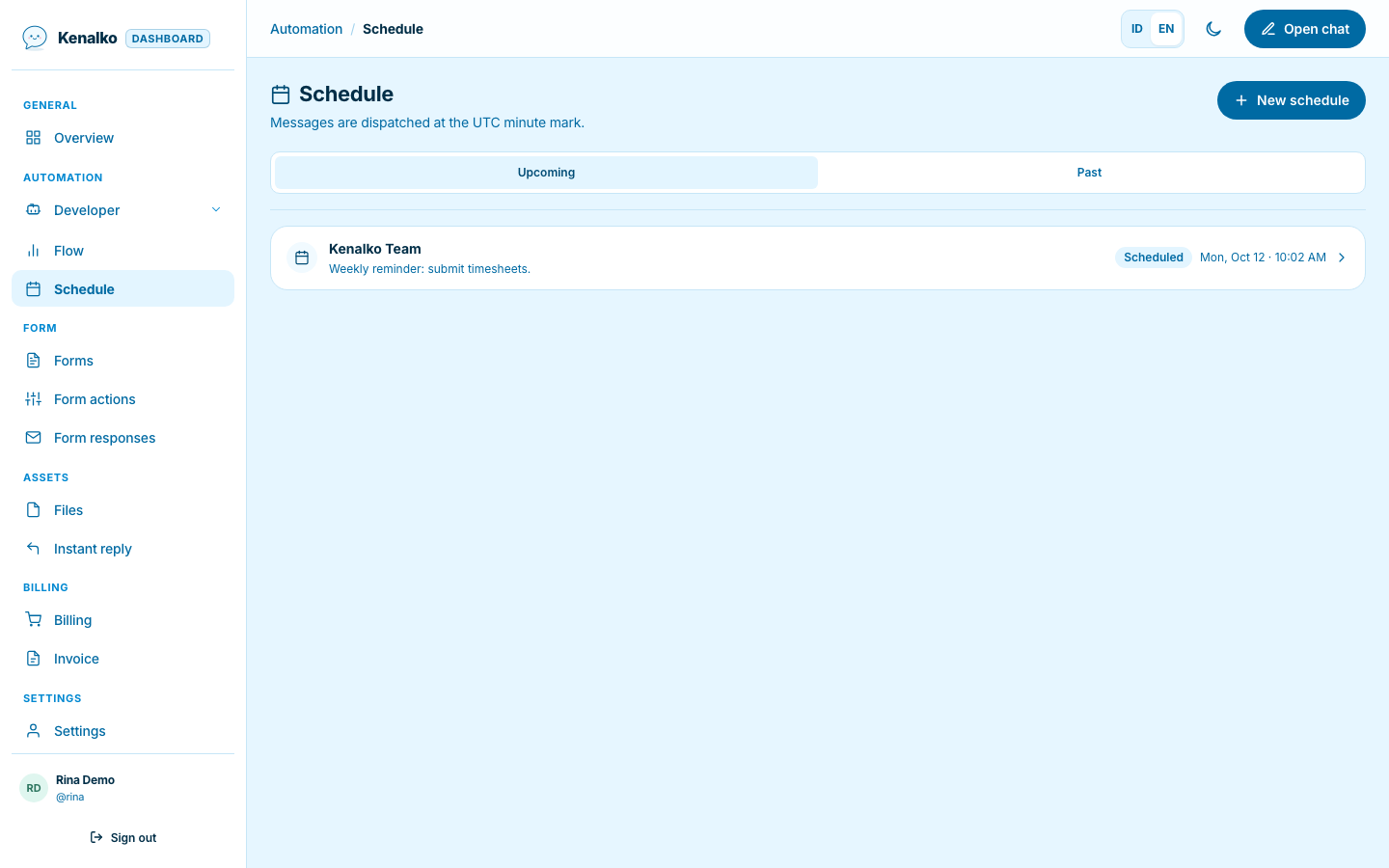
Route /schedule — demo screenshot (product UI).
About this screen
Schedule delivers messages via the API/internal scheduler to the room you pick — times in the UI are UTC (see header subtitle).
Upcoming = pending; Past = fired or cancelled.
API send top-up is required if quota is exhausted — pending schedules will not fire without quota.
Steps
- Automation → Schedule → New schedule.
- Pick destination (contact/group), compose message, set date/time (UTC).
- Confirm — row appears under Upcoming.
- Optional: open detail → Send now or Cancel.
- After send, check Past tab + recipient chat.
Screen areas
Nav
- Automation → Schedule
Header
- UTC hint subtitle
- New schedule
Toolbar
- Upcoming / Past chips
List
- Row: destination (personal/group), snippet, send time
- Tap → detail overlay + bubble preview
- Pending: Send now / Cancel (confirm)
Create overlay
- Pick room, message body (text/attachment/poll per composer)
- DateTimePicker send time
Index: Pages overview.