Flow
Screen reference — /flow (dashboard).
2 min read
Flow (/flow) — full-screen editor: toolbar, node canvas, right panel, Test flow.
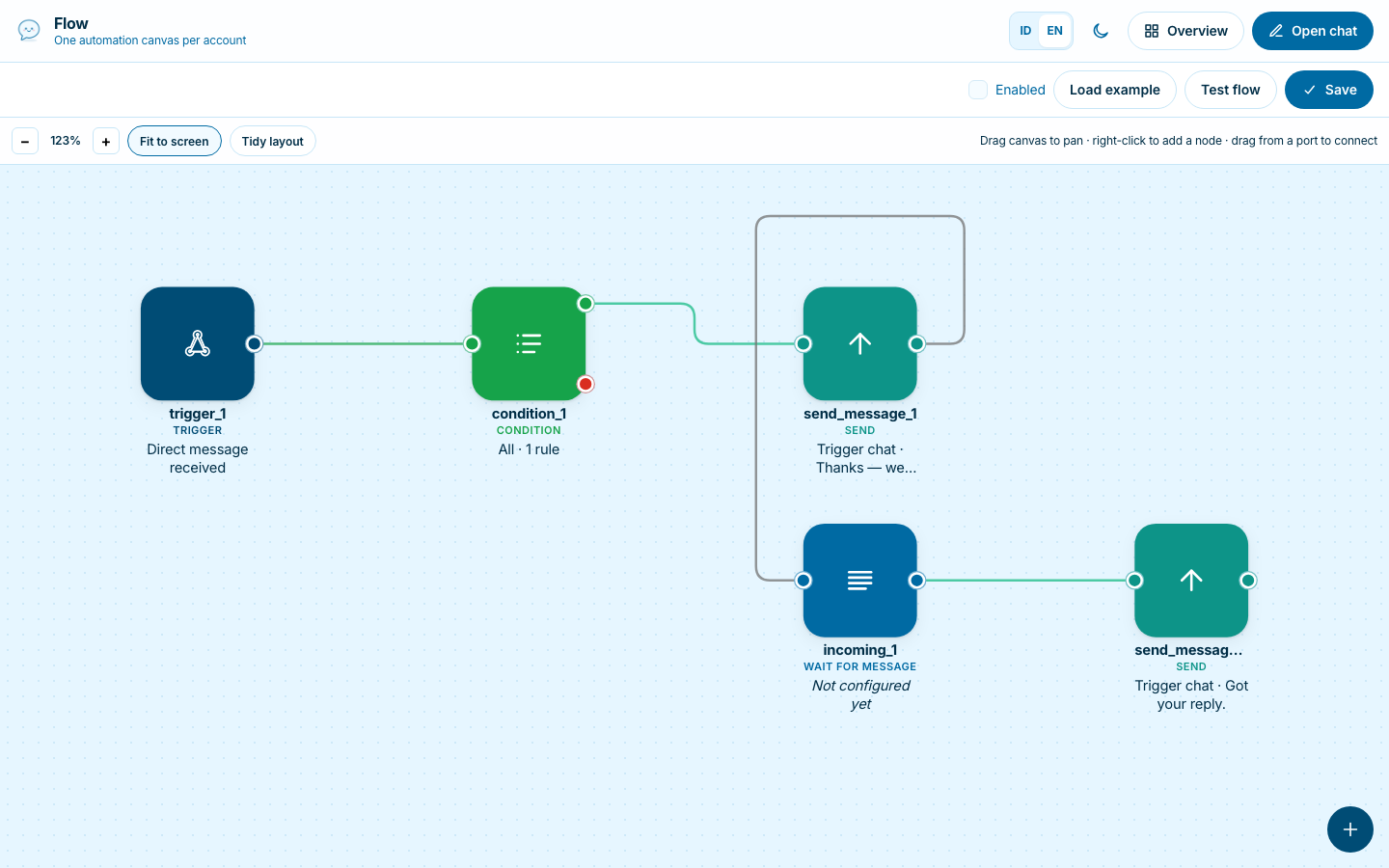
Route /flow — demo screenshot (product UI).
About this screen
Flow (/flow) replaces the normal dashboard layout — full focus on one automation graph per account.
Toolbar Enabled controls whether live triggers run; without Save, node edits are lost on refresh.
Production runs appear under Developer → Logs (Flow tab); Test flow is local simulation only.
Steps
- Sidebar Automation → Flow.
- Add nodes from the palette, connect edges, fill the right panel.
- Load example if the graph is empty.
- Test flow for a dry run.
- Check Enabled when ready for production → Save.
Note:
- One graph per account — duplicate triggers for the same event need IF nodes, not separate graphs.
Screen areas
Layout
- Dashboard sidebar hidden
- Toolbar + canvas + panel only
Toolbar
- Enabled checkbox (graph enabled)
- Load example
- Test flow (simulation panel)
- Save (validates graph)
Canvas
- Add-node palette
- Drag/connect edges
- Select node/edge
- Tidy layout
Right panel
- Selected node config (Trigger, Send, HTTP, IF, …)
- Close / delete node
Validation
- Error banner after failed Save
- Focus problematic node
Index: Pages overview.