Files
Screen reference — /files (dashboard).
2 min read
Files (/files) — account attachment library; filter, preview, rename/remove (Storage quota).
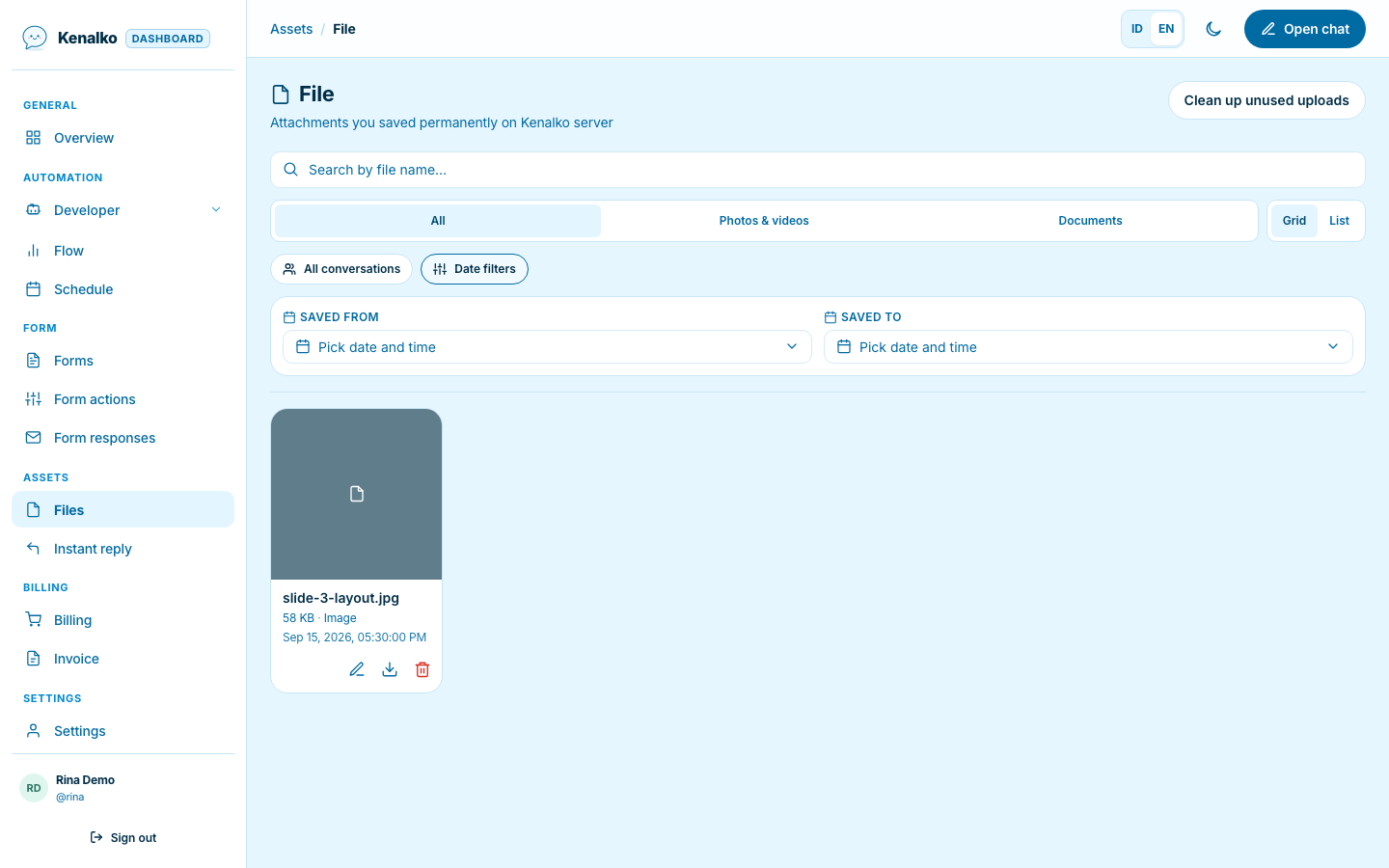
Route /files — demo screenshot (product UI).
About this screen
Files is the library of attachments saved to your account — photos, PDFs, and other files you Saved from chat or uploaded via the dashboard (instant reply, forms, etc.).
The filter toolbar narrows the list without changing quota; use the lightbox to preview, download, rename, or remove.
Byte usage counts toward Storage (/billing/storage); deleting here frees space after the server processes it.
Steps
- Assets → Files — wait for the list to load.
- Optional: search by name, pick a file kind, filter by chat or saved date range.
- Tap a thumbnail → lightbox; download or rename if needed.
- Remove unused files → confirm (storage quota updates after billing sync).
Note:
- Header **Clean up staging** releases temporary upload holds — not a substitute for permanent delete.
- Client-side **kind** filters (image/video/document); load-more pagination still comes from the server.
Screen areas
Nav
- Assets → Files
Header
- Files quota subtitle
- Clean up staging action (temporary upload holds)
Filter toolbar
- Search (debounced)
- Kind chips: all / image / video / audio / document
- Grid vs list toggle
- Chat filter (
DestinationPickerDialog) - Advanced: saved after / before (
DateTimePicker) - Clear filters when active
List
- Thumbnail + name + source chat (when set)
- Load-more on scroll
- Inline rename
- Remove → confirm overlay
Lightbox
- File preview + prev/next
- Download / rename / remove from overlay
Index: Pages overview.