File manager
View, search, download, and delete files you saved in the dashbor.
File manager (dashbor sidebar File) lists only attachments you saved from chat or dashboard uploads. Files merely sent in a thread without saving do not appear here. Start with Files if you have not saved from a chat bubble yet.
The flow
- 1Open File
Dashbor → sidebar File.
- 2Search & filter
Search by name; kind chips (all/media/docs); filter by conversation or saved date.
- 3Preview
Tap a thumbnail — image/PDF lightbox, rename, download with your chosen filename.
- 4Delete
Remove from your library; the server copy is removed too if no other user still has a saved copy.
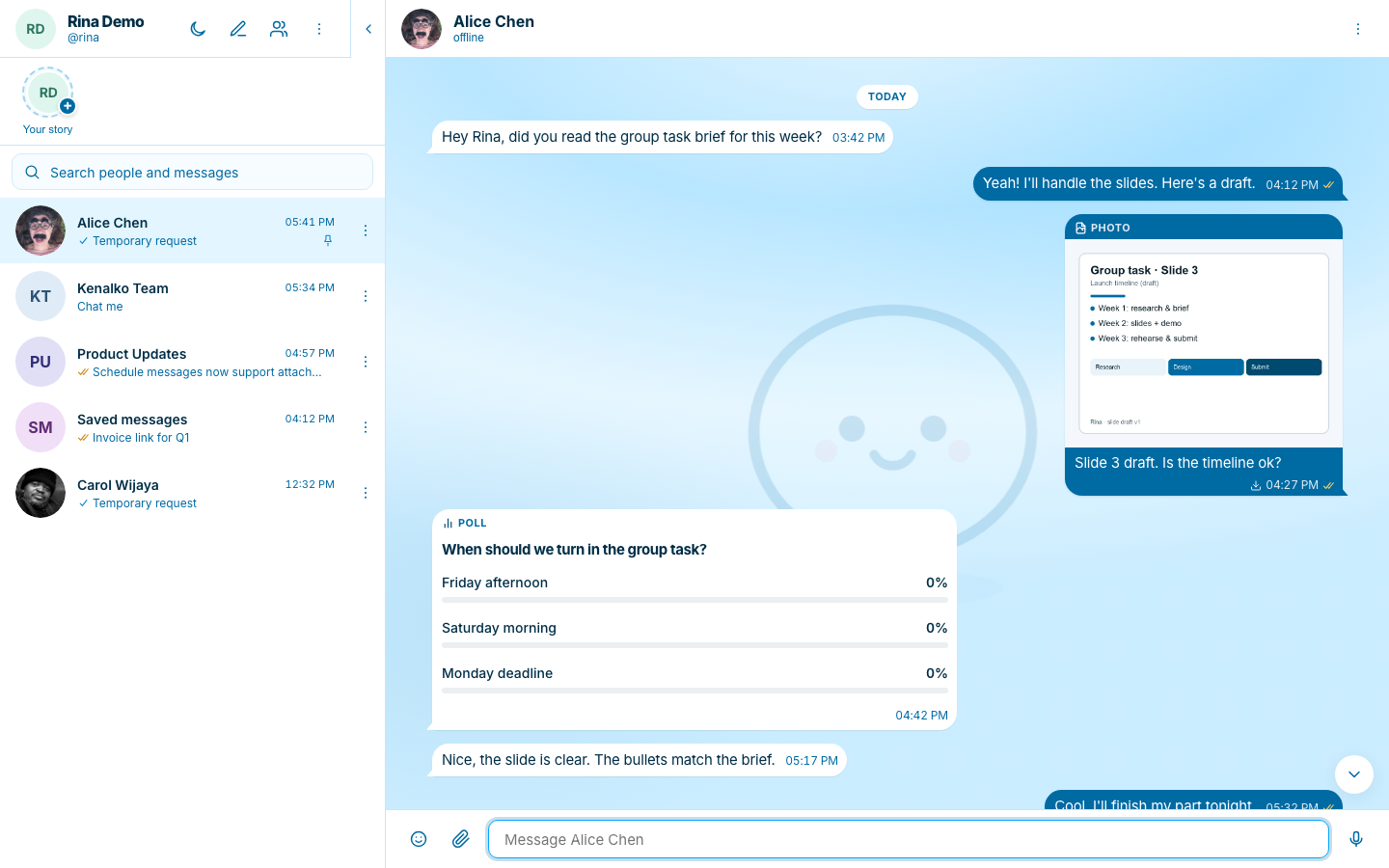
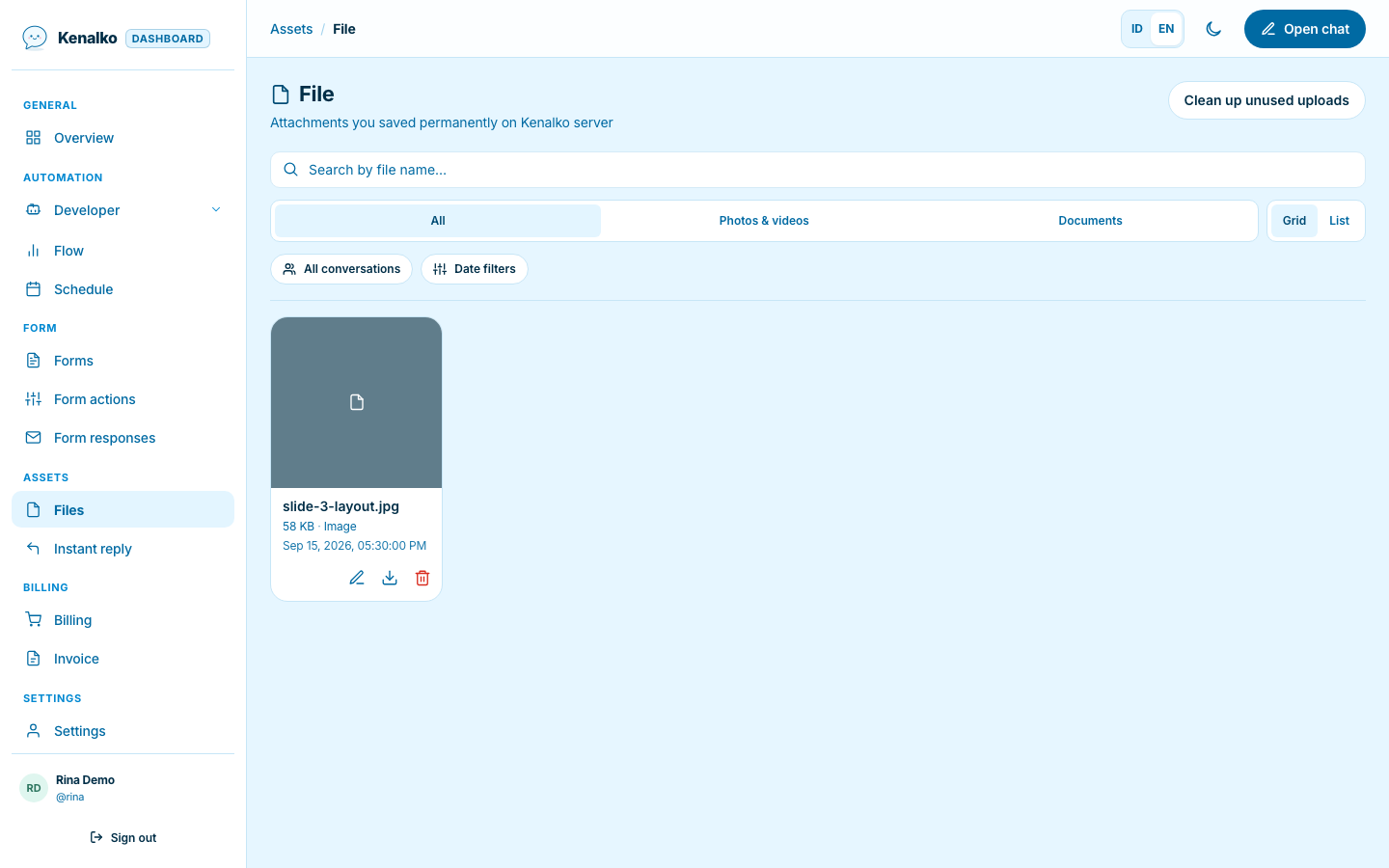
Left: Save in chat. Right: the same file (or another copy you saved) under dashbor File.
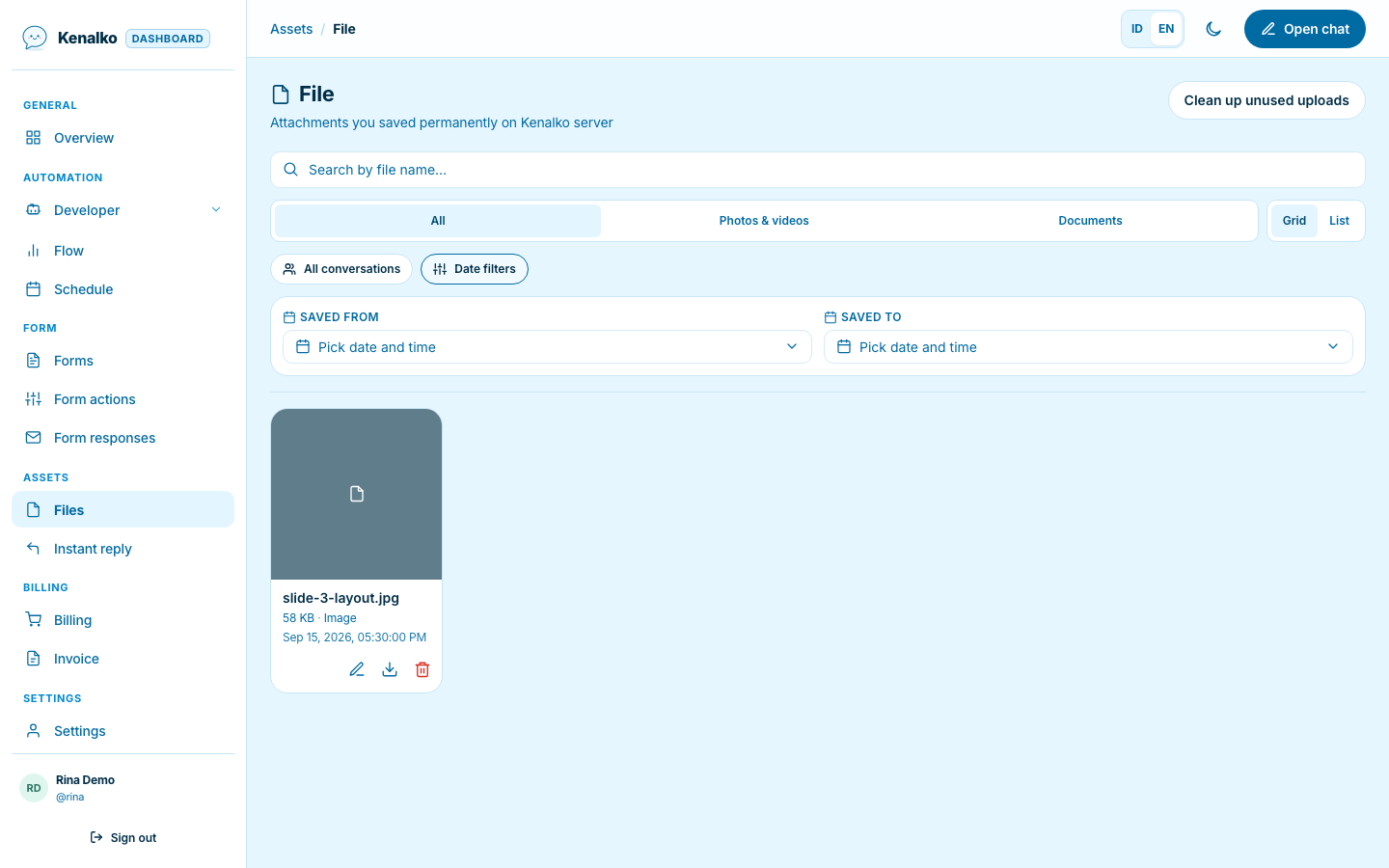
Date filters opens Saved from / Saved to. The conversation filter picks which chat the file came from.
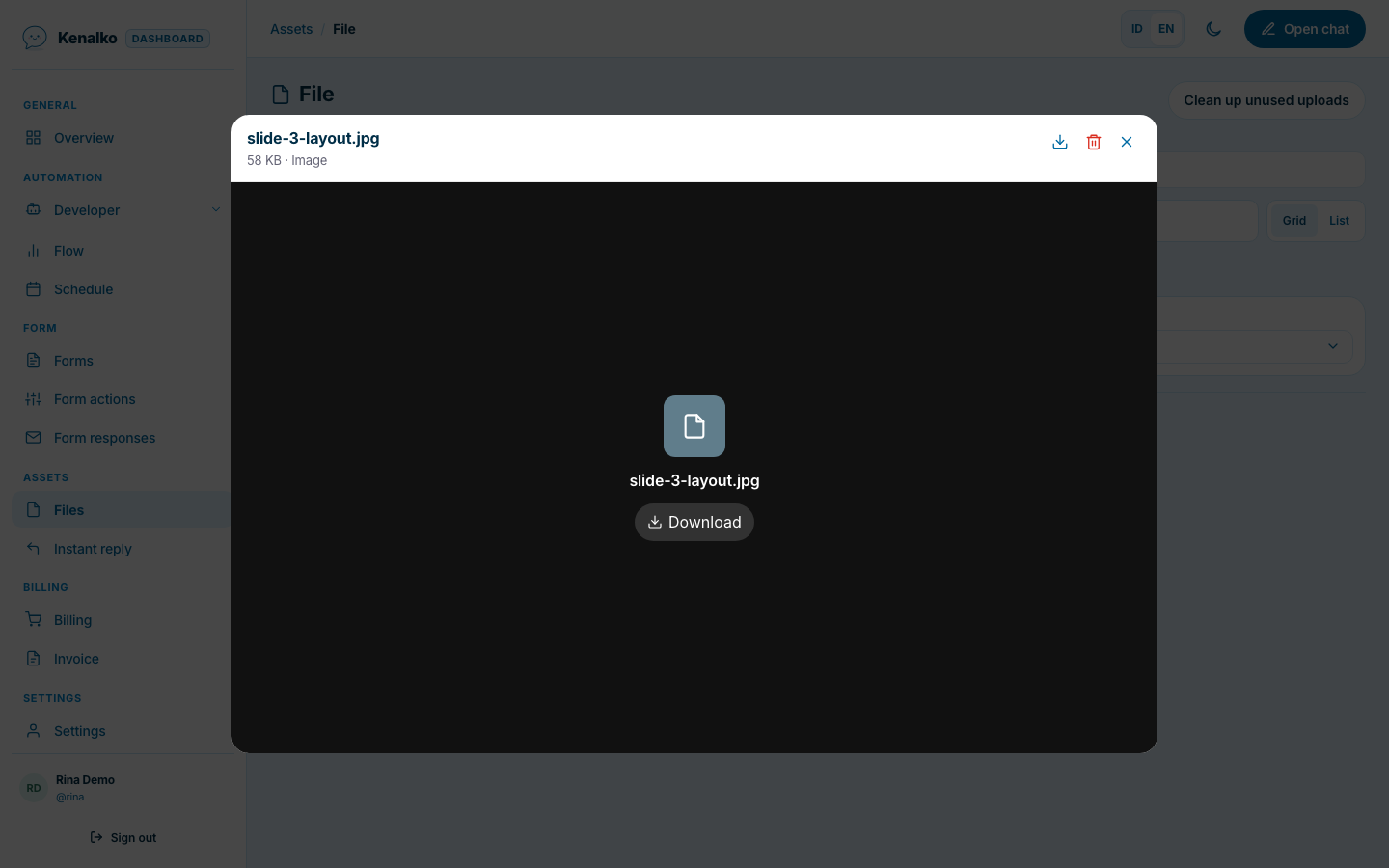
Full-screen preview — download, change display name, or remove from your library.
Notes
Scheduled message attachments appear after the message sends and you save from the bubble.
Instant replies that use dashboard files stay in the library even if the instant reply is deleted — resending in chat creates a new file_id (not a forward of the same blob).
Storage quota: File limits and retention · Storage.