Personal room
Understand 1-on-1 chat, contact profiles, connecting, and personal contact controls.
A personal room is a 1-on-1 chat between two connections. It is not opened by searching for an @username — both people must connect through an invitation first, then open the chat from Contacts or the chat list.
From invitation to chat
- 1Invitation
One person creates a personal link and shares it. Invitation types are covered in Contacts and invitations.
- 2Accept
The other person opens the link and taps Accept invitation.
- 3Contacts
Both names appear under Contacts → Active.
- 4Open the room
Choose that name in Contacts or a chat-list row — the 1-on-1 thread opens.
Connection flow example: create a link → the other person accepts → both in Contacts → personal chat opens.
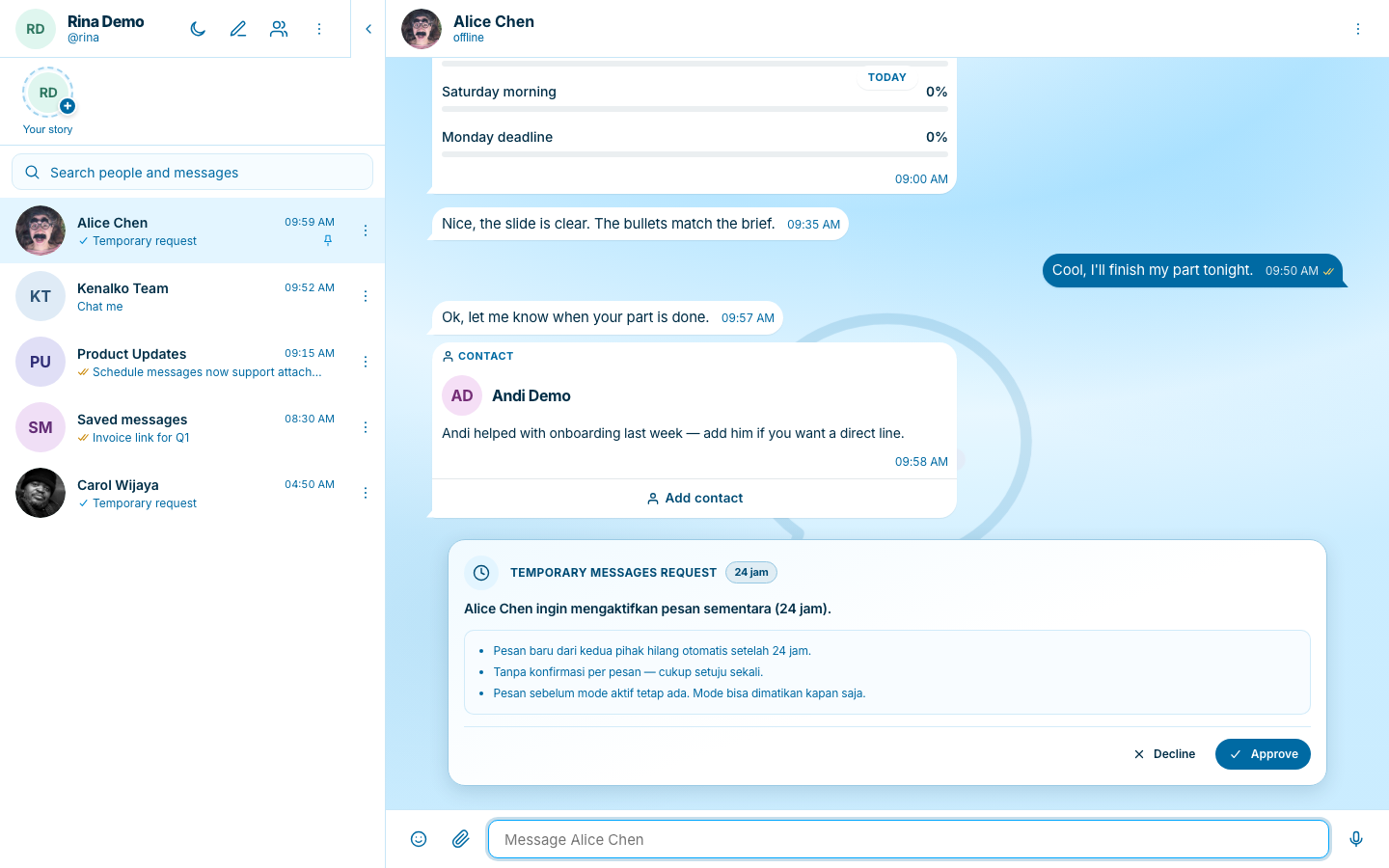
Once connected, a personal room looks like any direct chat: name in the header, incoming on the left, yours on the right, composer at the bottom.
Inside the room
Contact name and photo. Open room info for the available profile and connection status.
Text, media, files, reply, forward, pin, and temporary mode — see Chat features. Receipts are in First chat.
Personal rows move up on new messages; pin chat is only on your device (see Chat list).
Notes to yourself
Saved messages in the chat list is a chat with yourself — not a personal room with someone else. No invitation needed. See Chat list.
Block a contact
Contacts → menu on the name → Block. The name stays on your list under Blocked. They are not notified.
Past chat stays readable. New messages from them cannot be sent. Use Unblock from the same menu — no new invitation required.