Chat features
Manage bubbles, message types, replies, forwards, pins, reactions, stickers, and temporary messages.
Every message has its own action menu. Right-click a bubble on web (or long-press on mobile) for Edit, Reply, Forward, Pin, or Delete — the list depends on message type, room, your role, and how old the message is.
Open the menu
- 1Open a chat
Pick a row in the chatlist so the thread and composer appear.
- 2Target a bubble
Right-click the bubble on web (long-press on mobile). The action menu opens near the bubble.
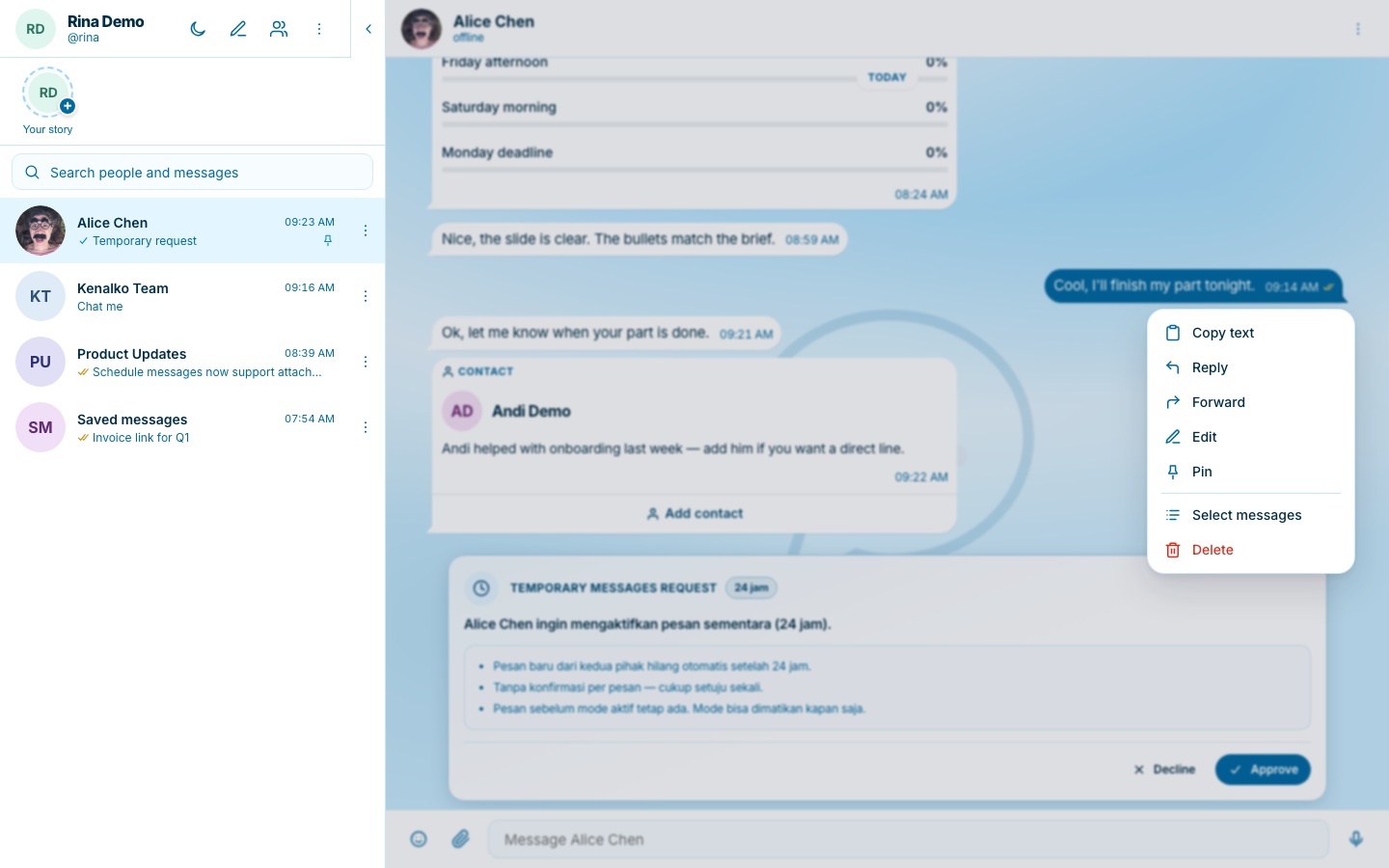
Example on your own text message. Someone else’s messages won’t show **Edit**; channel subscribers have no composer — menus are read-only there.
Bubble actions
Your text
EditChange the body within the first 15 minutes. Everyone sees the latest version; tap the edit indicator for history.
All types
ReplyA preview of the original sits above the composer. The reply bubble shows the quote; tap the quote to jump to the original.
All types
ForwardOne bubble or Select messages from the toolbar. Pick destinations you can access. New messages are labeled **Forwarded**.
Room
PinThe pin strip above the thread opens the full pin list. Personal chat: either person can pin. Groups/channels: owner/admin rules apply.
Delete
For me / for everyonePersonal chat: remove the other person’s message from your view only. Yours can be deleted for everyone within the time window, then for you only.
For-me deletion does not remove the message from the other person’s history.
Groups & channels
DeleteOwners/admins delete per room rules; members delete their own when allowed.
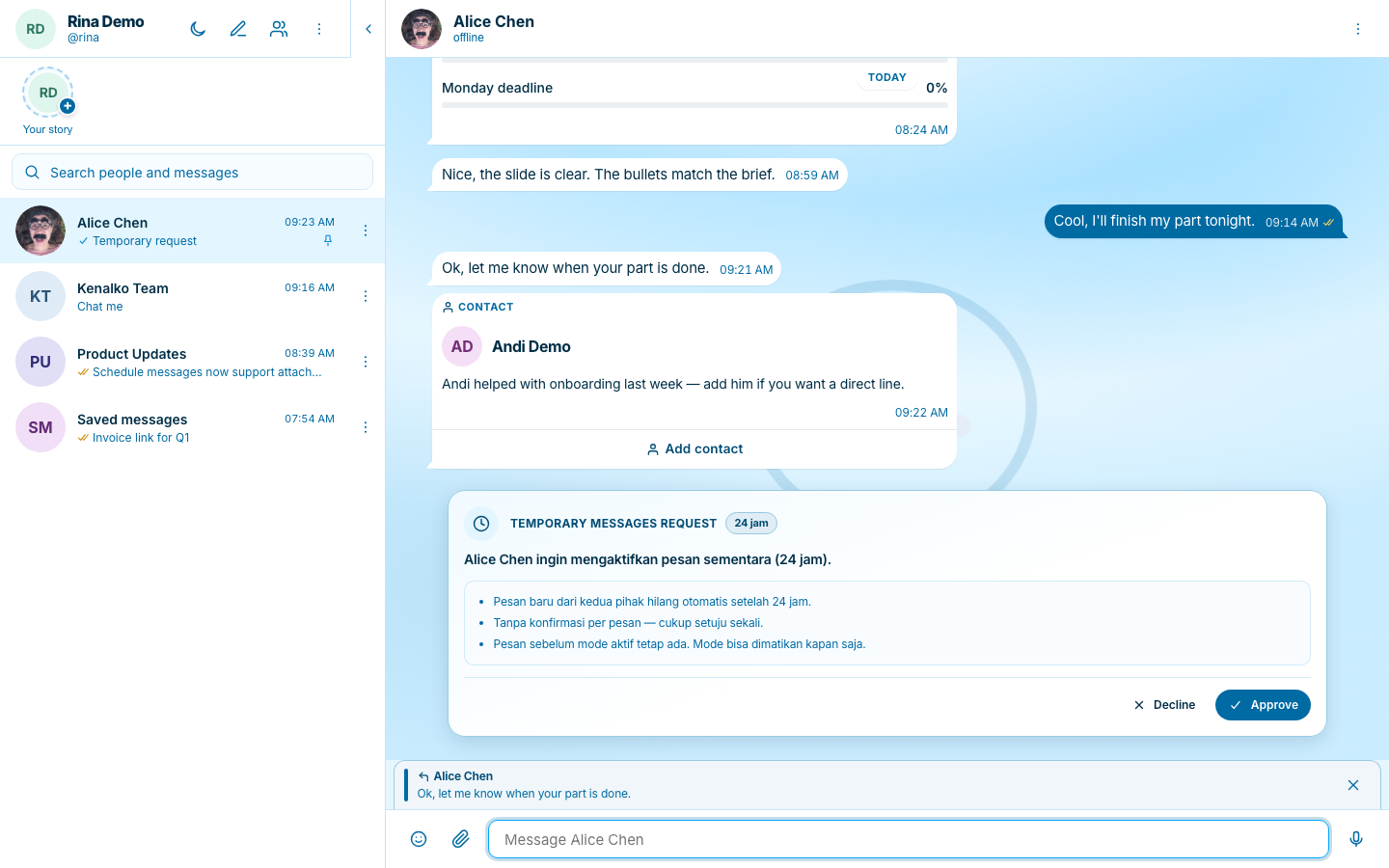
Reply: the strip above the composer shows who you’re replying to and a snippet. Send like any other message.
Message reactions
Add an emoji to a message without sending a new message. On web, right-click the bubble (or use the reaction button when it appears); on mobile, long-press the bubble and choose React.
- 1Choose a message
Open the bubble menu on web or long-press the message on mobile.
- 2Choose React
Pick one: ❤️ 😂 😮 😢 🙏 😡.
- 3Manage the reaction
Tap the reaction strip to see who reacted. Pick another emoji to replace yours, or pick the same emoji / Remove reaction to remove it.
Each person can have one reaction on a message. Channel subscribers can react even when they cannot send messages. Guest users must sign in with Google to use message reactions. Story reactions still send a private message to the story owner.
Stickers
Send a sticker directly from the emoji picker.
- 1Open the emoji picker
Tap the emoji icon in the chat composer.
- 2Choose the Sticker tab
Use search if you need to find a sticker.
- 3Tap a sticker
The picker closes and the sticker is sent to the chat immediately.
Stickers appear without a text-bubble background. Sent stickers do not have Save or Download actions.
Bubble kinds (text, media, cards, system) are on Type bubble.
Temporary messages
Per-conversation mode. New messages after it is accepted disappear automatically after 1 hour, 24 hours, or 7 days.
Personal chat
- 1Open the conversation menu
In a 1-on-1 header, open Conversation menu → Temporary messages.
- 2Pick a duration and send the request
Choose 1 hour, 24 hours, or 7 days, then send the request to the other person.
- 3Approve or decline
The other person sees a card in the thread with Approve / Decline. The mode is active only after they approve.
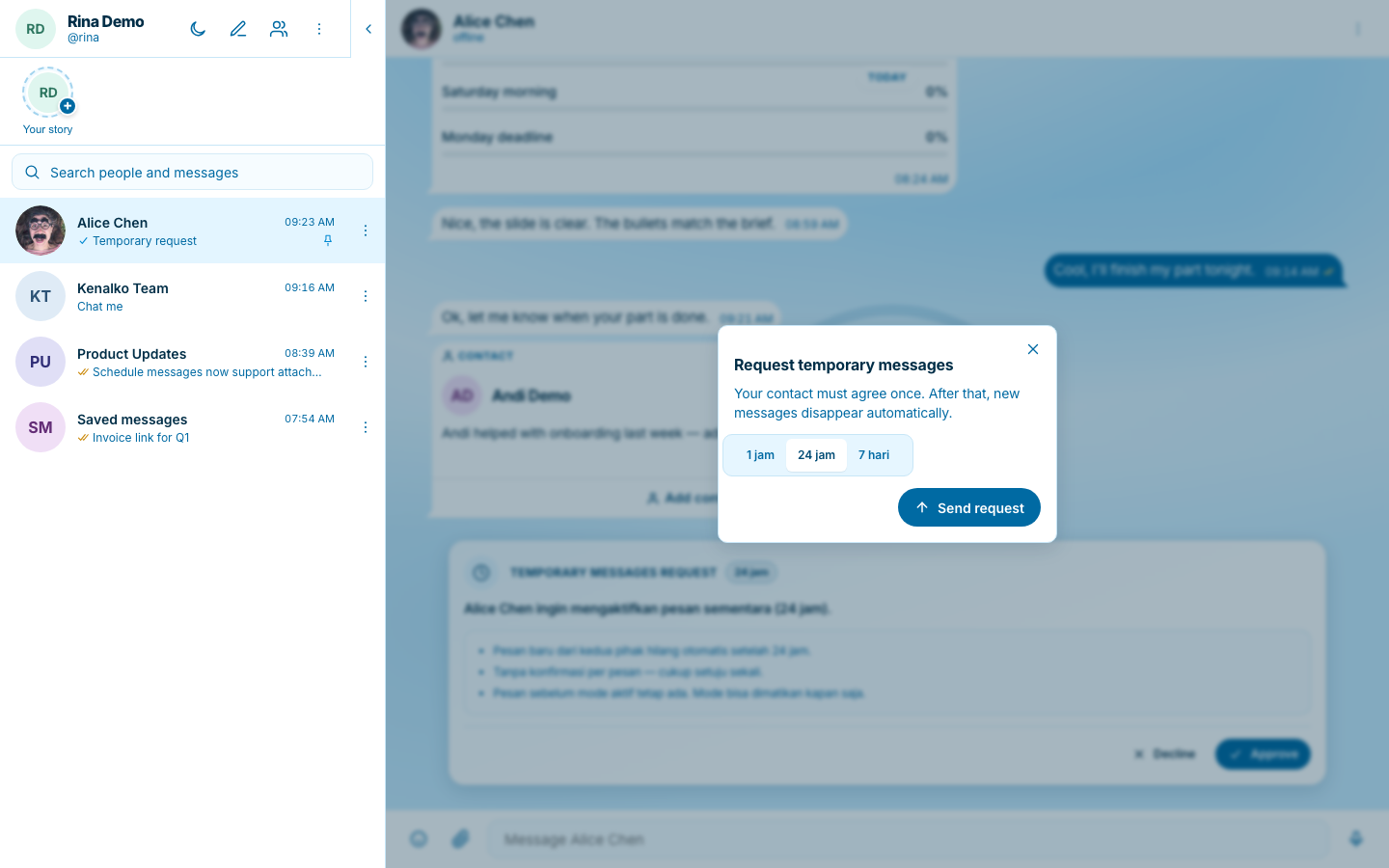
Personal chat request — the other person must approve before timers apply.
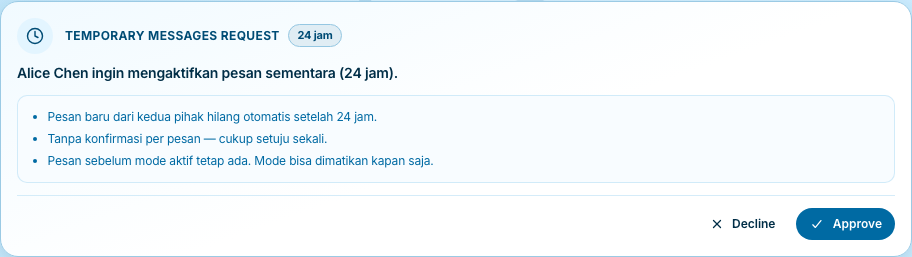
One-time consent card — only the registered peer can Approve or Decline.
Groups & channels
Owners or admins turn the mode on or off from the same conversation menu. Members see a system bubble when the mode changes. Guests cannot control temporary messages. Turning the mode off does not restore messages that already have a timer.
For the file composer and server retention, see Files.