First chat
Open a conversation, send your first message, and understand bubbles and receipts.
For a personal chat, connect through an invitation first. After the person appears in Contacts, open the conversation, write a message, and send it.
How to chat
- 1Open the list
The chat list is on the left. Nothing is selected yet — the pane says Select a chat to start messaging.
- 2Choose a conversation
Click a row. Incoming messages stay on the left; yours stay on the right. An unread line marks messages you have not opened yet.
- 3Write
Use the composer at the bottom. The paperclip attaches a photo or file. Enter or the send button sends the message.
- 4See the receipt
A clock means it is still sending. One check means the server accepted it.
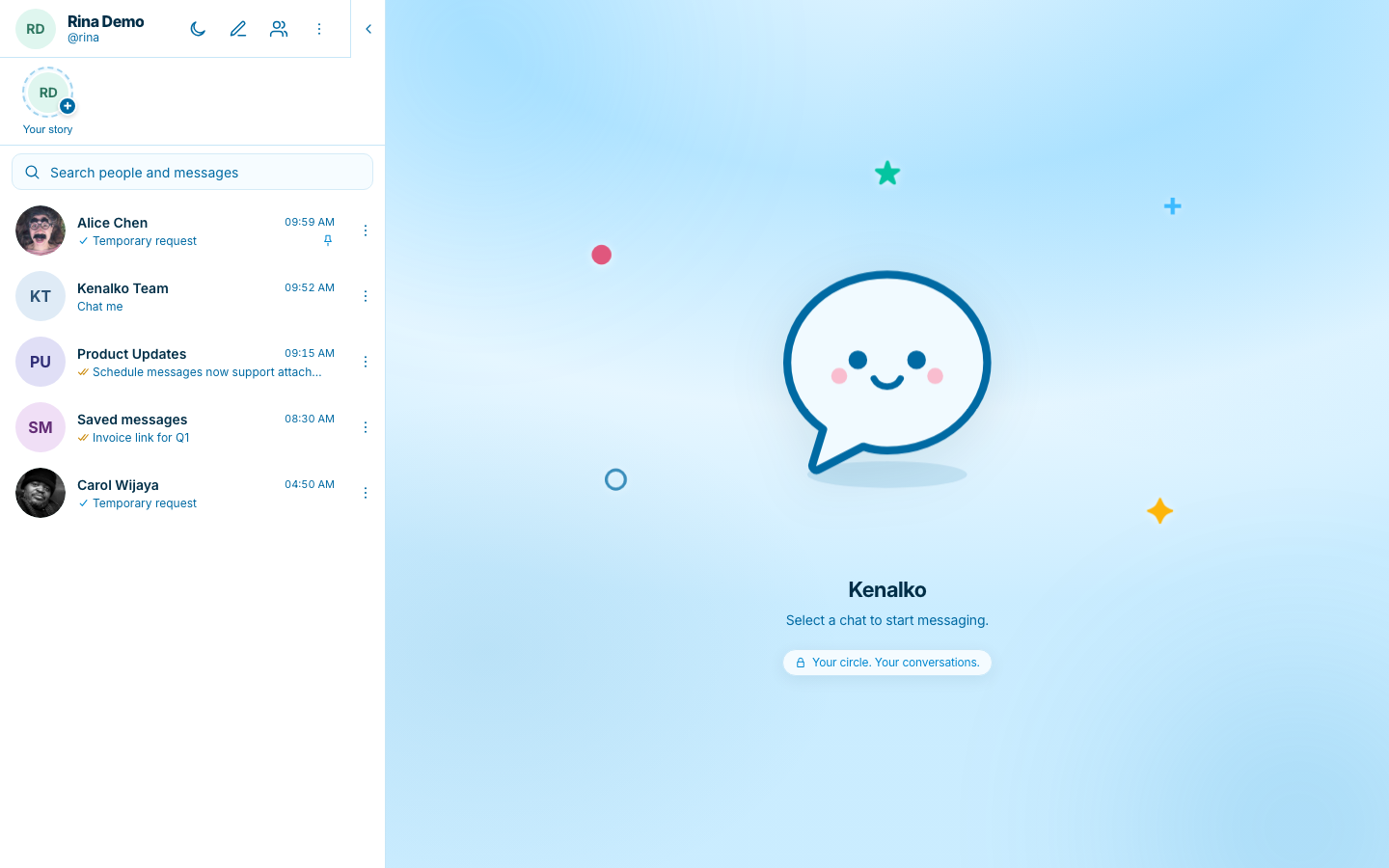
Start from the chat list. Personal chats, groups, channels, and Saved messages stay in one list.
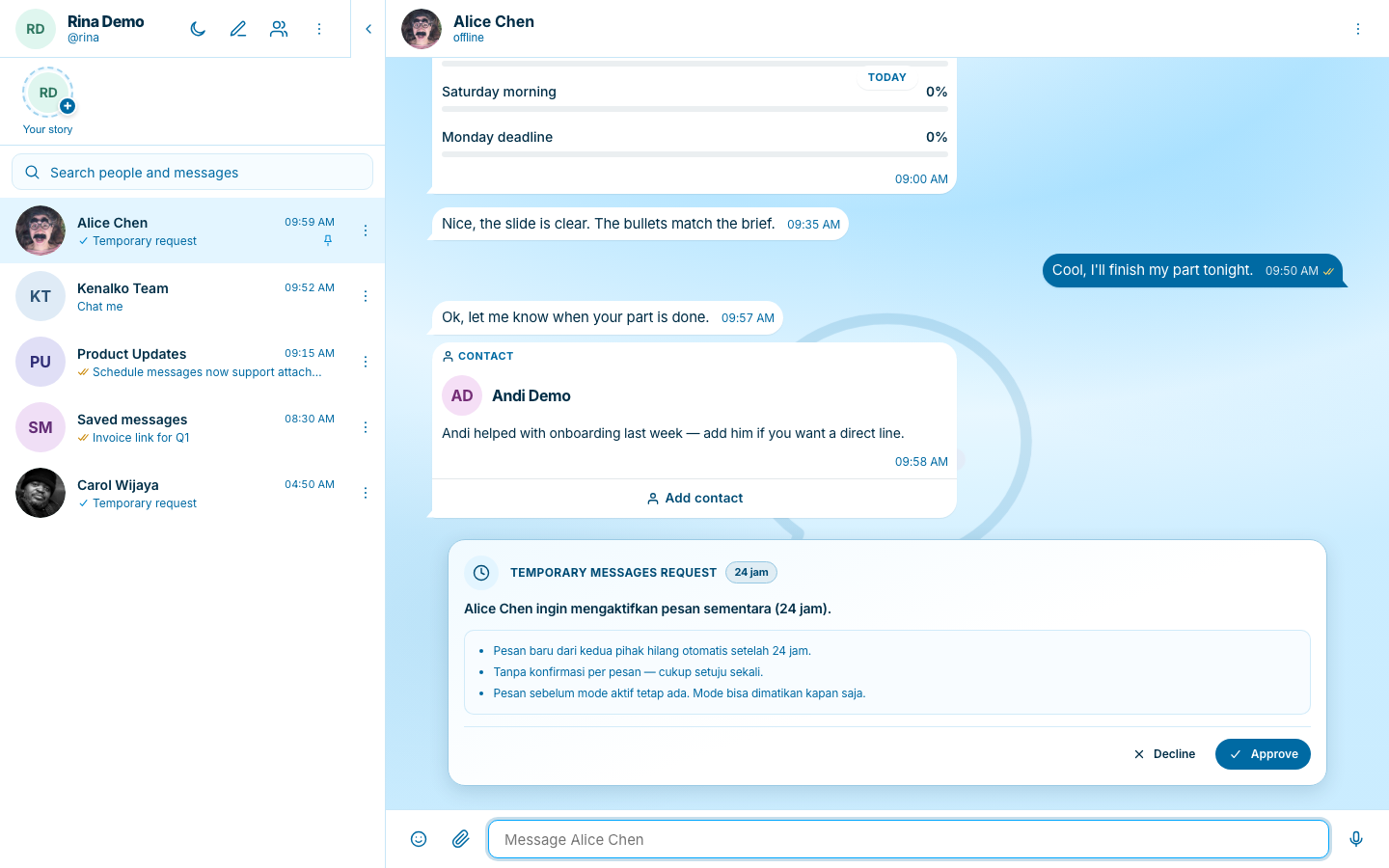
Open a row to see the thread. The composer placeholder is Message Alice Chen. The line 2 unread messages shows where new messages start.
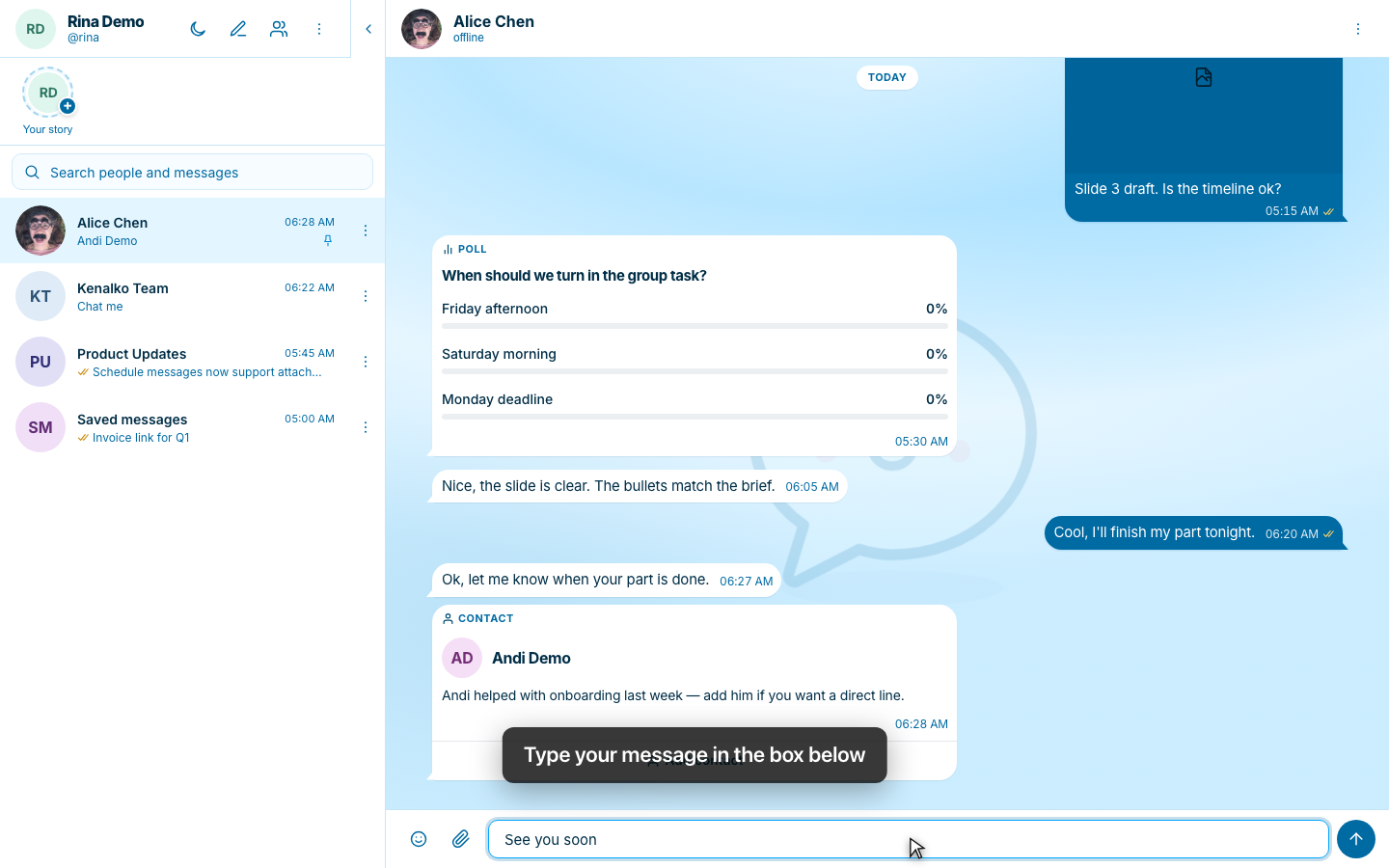
While the message is on its way, the bubble shows a clock. The send button appears after you type.
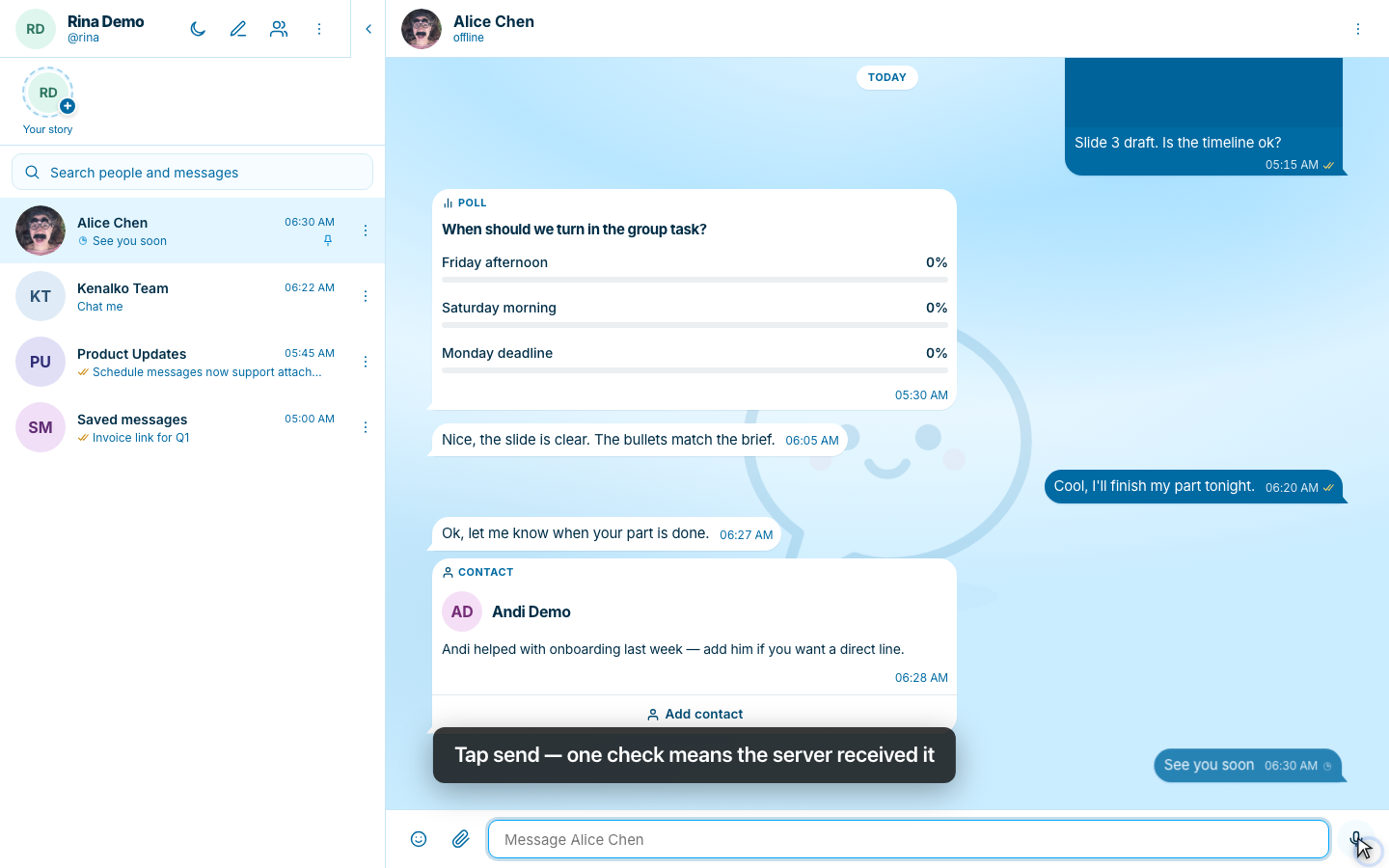
After the server accepts the message, the clock becomes one check.
Step-by-step walkthrough: voice narration and music, on-screen captions, and a cursor showing each click. Four steps: chat list → Alice Chen → type → send.
Bubbles and message types
- Text bubble: a regular message with supported text formatting.
- Media/file bubble: shows the file, a caption, the file type, and the size.
- Card bubble: can contain a location, poll, form, button, or list.
- System bubble: explains room events such as someone joining, leaving, or changing the room name.
Tap or click a bubble to open the actions available for that message. Actions depend on the message type, room, your role, and the message age.
Message receipts
Receipts sit on a message you sent, next to the time.

The message is still leaving this device, or the connection is not ready.

Choose Retry. Sending it again does not create a second copy.

One check: the server accepted the message.

Two checks: it reached the other person’s device.

Amber checks: the bubble was visible and the message is marked read.
Group chats use one check for a message the server accepted. Channel subscribers do not have a composer, and channel messages do not show personal-chat receipts.
Demo: chat with Saved messages
- Open the chat list.
- Choose Saved messages.
- Write a short note and press Enter or the send button.
- The note stays in that chat. The receipt jumps to read, because the conversation is with you.
Saved messages does not require an invitation.