Group
Create, join, and manage groups with roles, members, invitations, mute, and ban.
A group is a room for many people at once. Only registered accounts can create or join; guests cannot. New members enter through a group invite link, not an @username.
Create a group
- 1Sign in
Use a registered account (not a guest).
- 2Groups menu
Main menu → Groups → New group.
- 3Name
Enter a group name (max 50 characters).
- 4Invite
The creator becomes Owner. Everyone else joins through invitations (steps below).
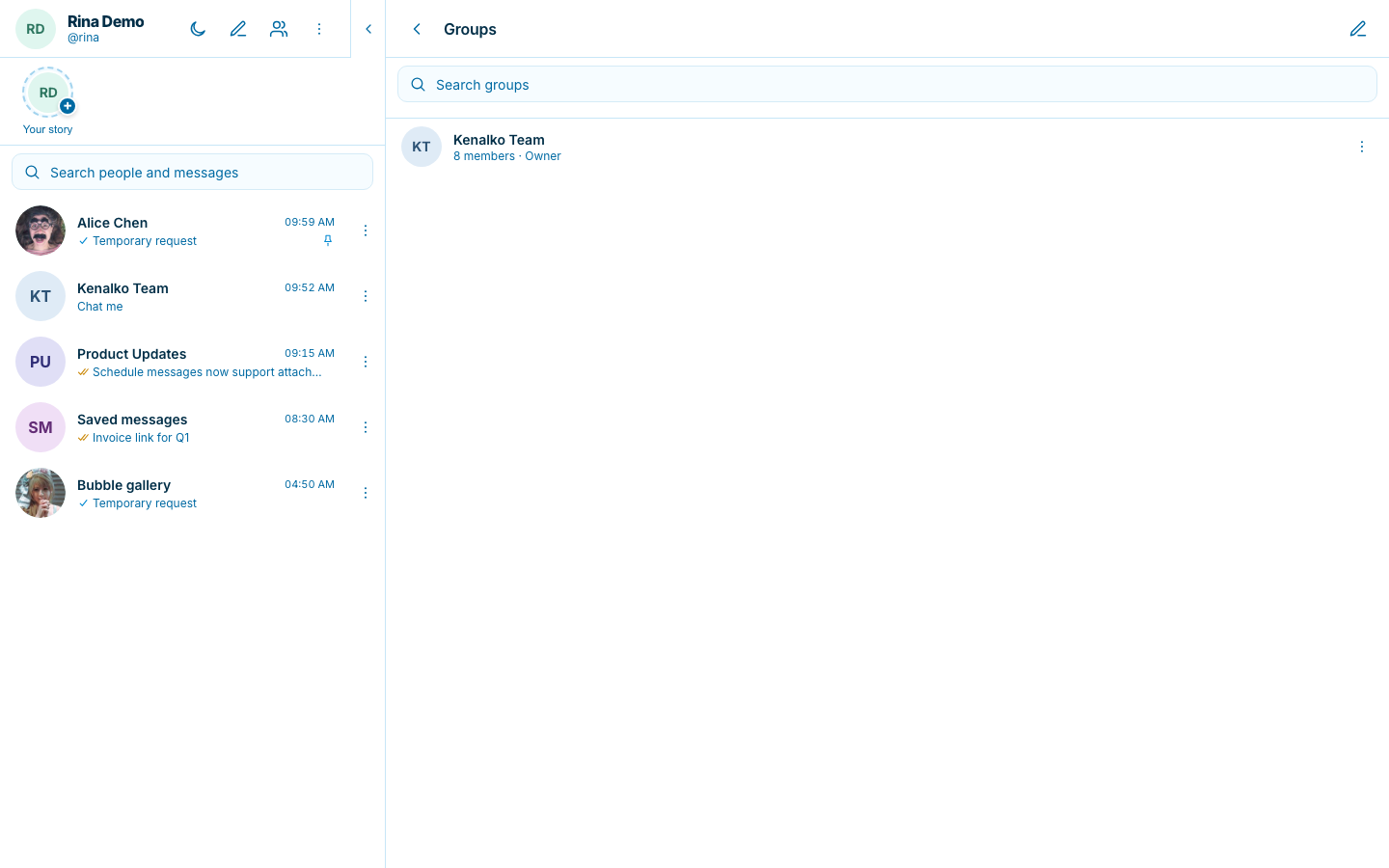
Groups lists rooms you follow. From here you can create a new group or open group settings.
Join via invitation
- 1Link
Owner or admin opens Invite people in group settings → create an Anyone or Email link (registered accounts only).
- 2Share
Copy the link for new members (max 100 active invites per account, personal + group combined).
- 3Accept
The recipient opens the link, sees the group name and inviter, then Join.
- 4Chat list
The group appears on the chat list. Joining does not automatically make you personal contacts with every member — use a contact invitation for 1-on-1.
Besides links, owners/admins can share a group via Introduce in another group chat or a personal chat: pick the group to promote, write a reason, and send. Recipients see a group card and can Request to join (in addition to direct invite links above).
Chat in a group
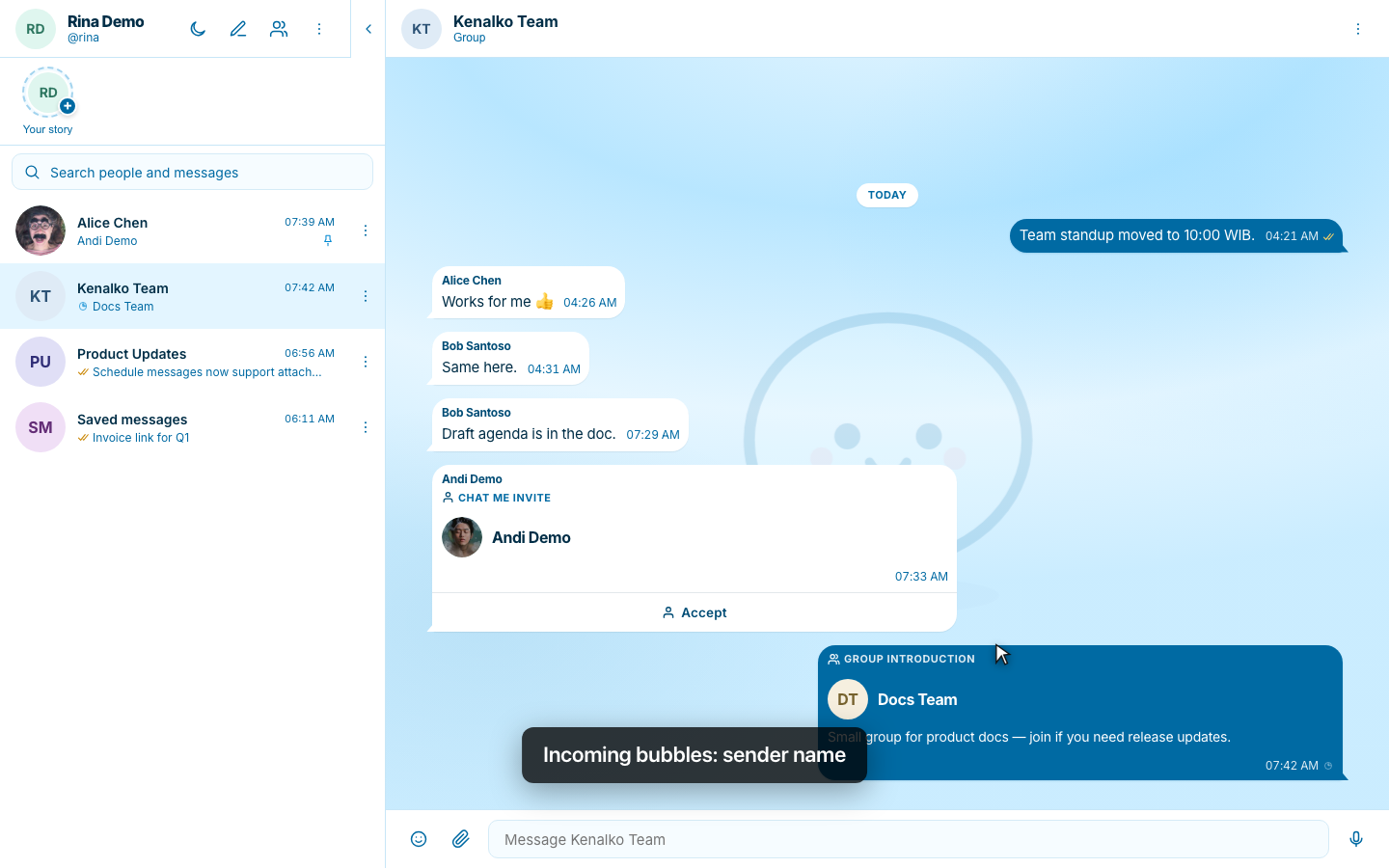
In groups, incoming bubbles show the sender name. History loads in pages, including messages from before you joined. Group receipts: one check (accepted by the server) — not per-member read like personal chat.
Step-by-step walkthrough: voice narration and music, on-screen captions, and a cursor showing each click. Flow: Groups list → create a group → invite (link, QR) → in another group chat, Introduce the new group (card + join request) → incoming bubbles show sender names.
RT chair election poll — invite residents with a group link → admin sends a poll with a closing time → choose Final results (not Live) so counts appear only after voting ends → residents vote → review the tally.
Group Info (from the chat header) shows the name, photo, member count, your role, rules, and member list (search + load more). Up to 1,000 members per group.
Roles
Owner
Group ownerChat, rename, invite, transfer ownership, delete/restore the group, ban/unban, promote/demote admins.
Admin
ModeratorChat, rename, invite, leave, ban/unban members (not other owners/admins).
Member
MemberChat, view info, leave the group.
Mute & ban (group)
Mute (1 h / 24 h / 7 d): you can still read and receive messages but cannot send until it expires or you are unmuted.
Temporary ban (1 h / 24 h / 7 d): you cannot open the group until it expires; an admin can Unban early.
Forever ban: you cannot rejoin through an invitation. Group mute/ban does not block personal chat with the same people.
Leave & delete
Leave from Group Info — the group disappears from your chat list; personal connections with members stay.
The owner must transfer ownership or delete the group before leaving.
Delete group (owner): a 7-day grace period — all members see a countdown; send, leave, and invites are blocked. Only the owner can Restore from the chat or group details. After the countdown, the group is permanently removed.