Channel
Create a broadcast channel, invite subscribers/admins, and share via Introduce.
A channel is a broadcast room. Only registered accounts can create or follow. The owner and admins post; subscribers read. New members join via a channel invite link, not @username.
Create a channel
- 1Sign in
Use a registered account (not a guest).
- 2Channels menu
Main menu → Channels → New channel.
- 3Name
Enter a channel name (max 50 characters).
- 4Invite
You become Owner. Subscribers and admins join via invitations (below).
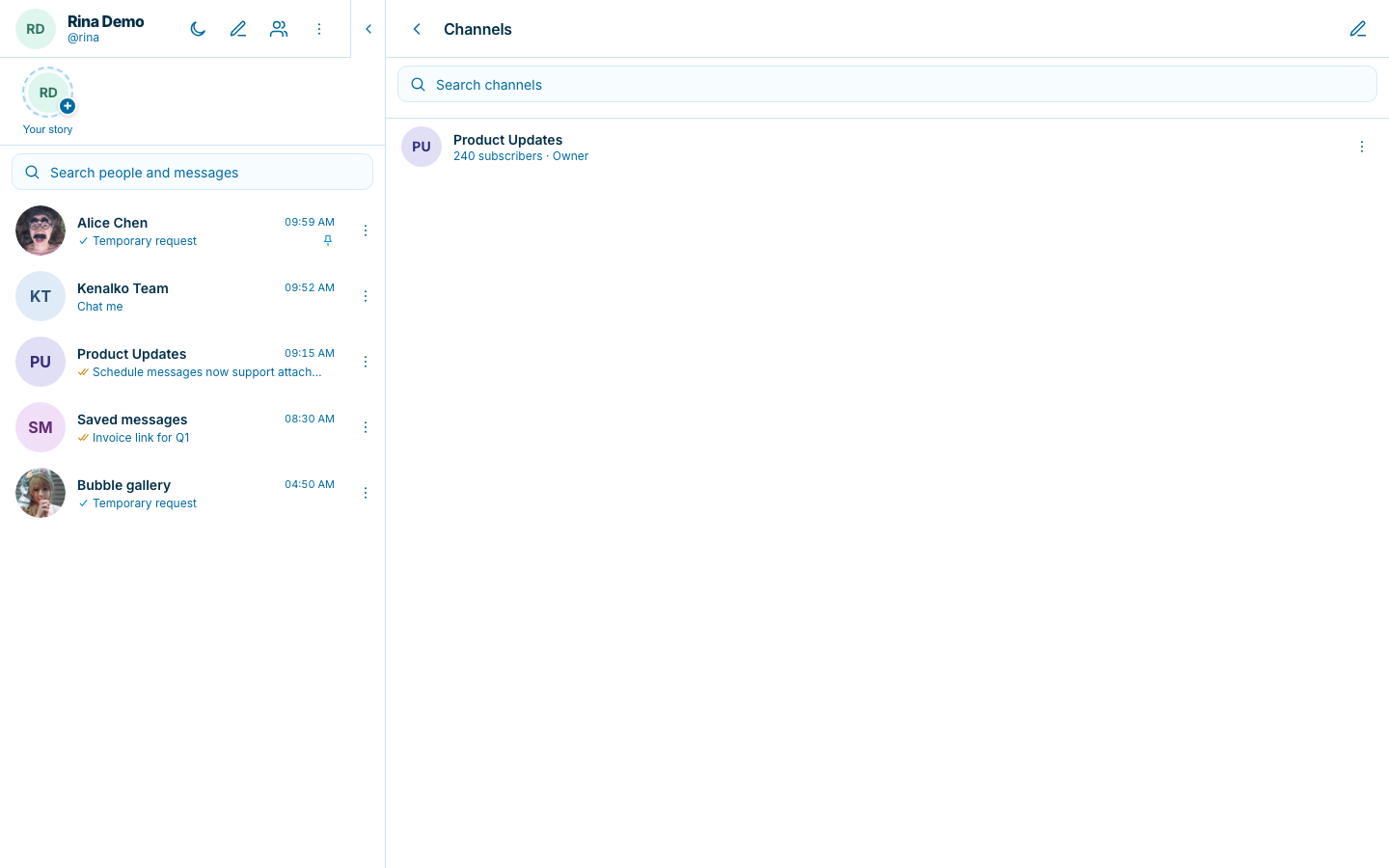
Channels lists broadcasts you follow or manage. From here you can create a channel or open settings.
Join via invitation
- 1Link
The owner opens Invite people in channel settings → create an Anyone or Email link (registered accounts only).
- 2Role
Choose Admin (can post) or Subscriber (read-only).
- 3Share
Copy the link or show the QR code.
- 4Subscribe
The recipient opens the link and taps Subscribe (or accepts admin if offered).
Besides links, the owner can share a channel via Introduce in a group or personal chat: pick the channel, write a reason, and send. Recipients see a channel card and can Subscribe from the card.
Broadcast & reading
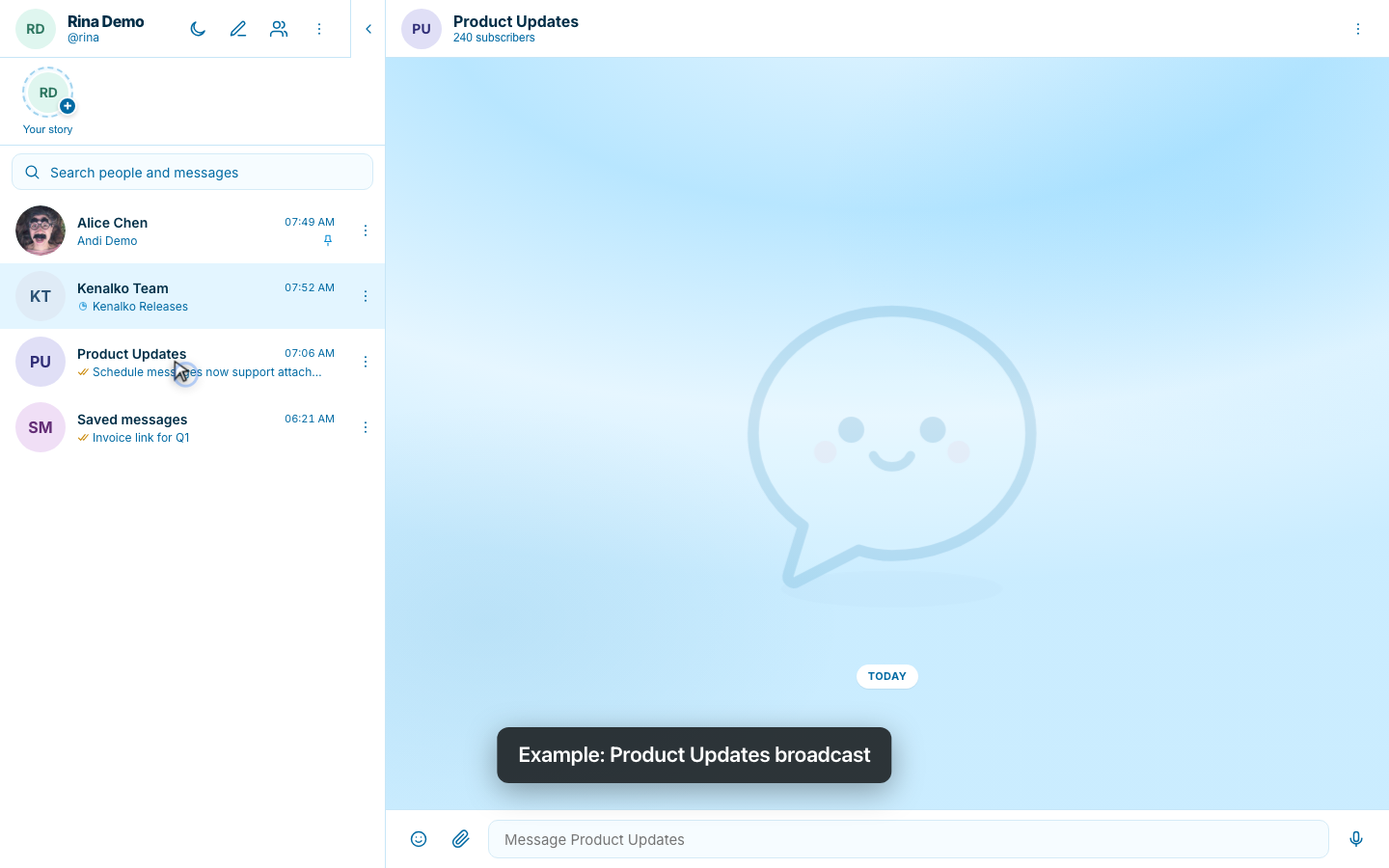
Subscribers read broadcasts; only owners/admins get a composer. Channels do not use per-subscriber read receipts like personal chat.
Step-by-step walkthrough: voice narration and music, on-screen captions, and a cursor showing each click. Flow: Channels list → create a channel → invite (link, QR) → in a group chat, Introduce the new channel → sample Product Updates broadcast.
Roles
Owner
Channel ownerPost, rename, invite, manage admins, transfer, delete/restore.
Admin
BroadcasterPost only — cannot manage channel settings.
Subscriber
ReaderFollow and read broadcasts.
Rules & lifecycle
Subscribers do not see other subscriber names; the owner sees the admin list.
Remove admin (owner): removes admin access — not kick/blacklist.
No group-style mute/ban. The owner can delete a channel while subscribers remain; 7-day grace with Pending delete — only the owner can Restore.