Overview
Screen reference — / (dashboard).
2 min read
Overview (/) — post-login dashboard home: shortcut modules, activity chart, API / AI / Storage quota.
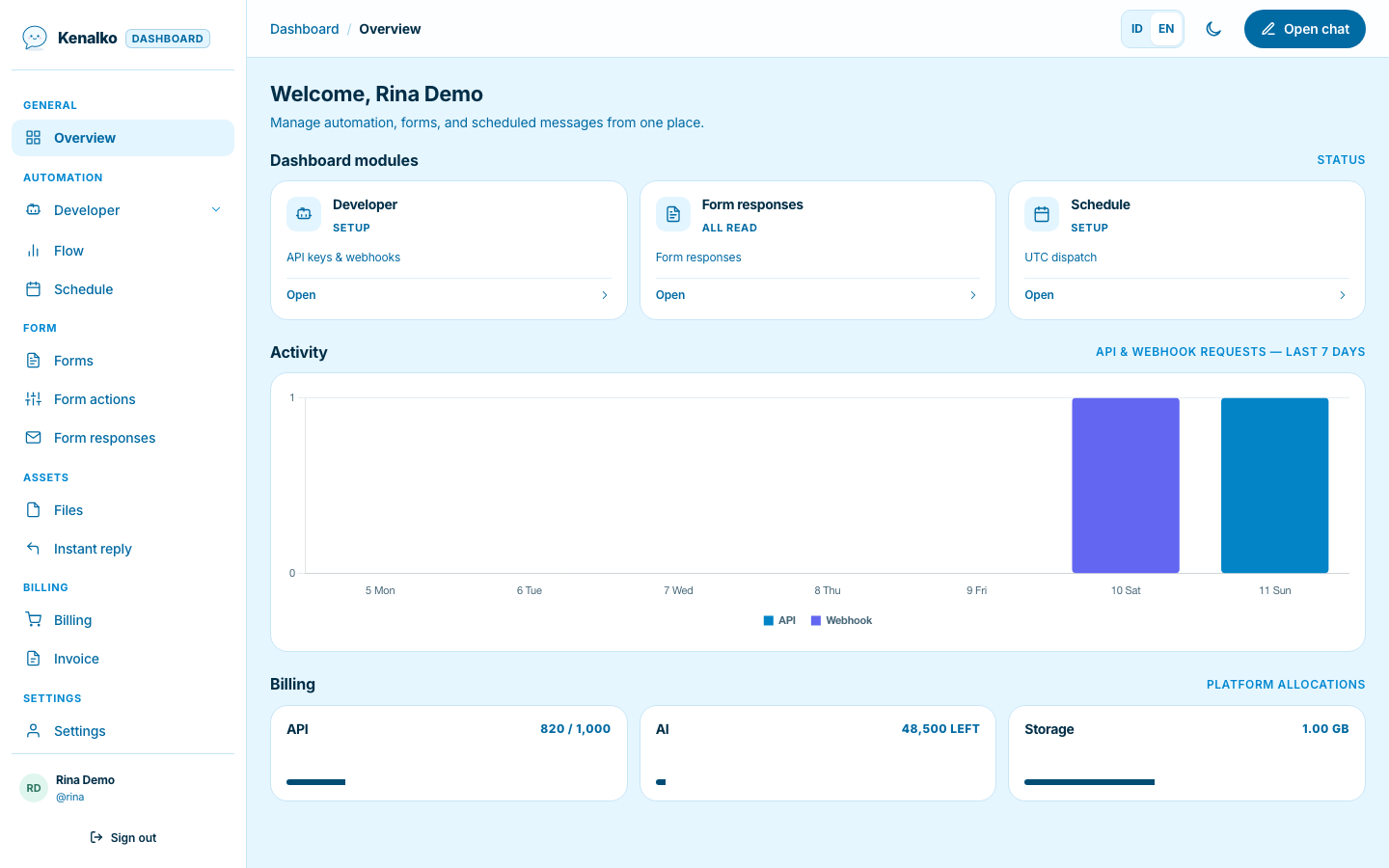
Route / — demo screenshot (product UI).
About this screen
Overview (/) is the dashboard home after sign-in — not chat. Main content is on the right; module navigation lives in the sidebar and top bar (same on all pages except full-screen Flow).
Three module cards are shortcuts: Developer (API setup), Forms (unread response inbox), Schedule (upcoming jobs). Card badges reflect live account data.
The Activity section charts Developer logs (7 days). The Billing section below shows API, AI, and Storage meters — tap a card for top-up or detail.
Steps
- After sign-in, confirm sidebar Overview is active (
/). - Check module cards — tap Open for Developer, Form inbox, or Schedule.
- Scroll to Activity for request trends; use Logs for row-level detail.
- Review quota meters; tap API / AI / Storage for top-up or GB subscription.
- For human chat: Open chat in the top bar (separate web tab).
Screen areas
Shell (sidebar + top bar)
- General → Overview active
- Nav groups: Developer (API keys, Webhook, Logs), Forms, Automation (Flow, Schedule), Assets, Billing, Settings
- Top bar: avatar, language, theme, Open chat (new chat web tab)
Page header
- Welcome title (display name) + automation/forms/schedule subtitle
Shortcut modules
- Three cards: Developer →
/developer(key count / Setup badge) - Forms →
/forms/responses(unread / All read) - Schedule →
/schedule(upcoming count / Setup) - Card footer: Open + chevron
Activity
- Chart from Logs (7 days)
- Meta hint on section title right
Quota (Billing)
- Three tappable cards: API →
/billing/api(free remaining / monthly + meter) - AI →
/billing/ai(tokens left + meter) - Storage →
/billing/storage(used bytes + meter)
Index: Pages overview.