Billing
Screen reference — /billing (dashboard).
Billing (/billing) — three quota summary cards; tap for detail + top-up.
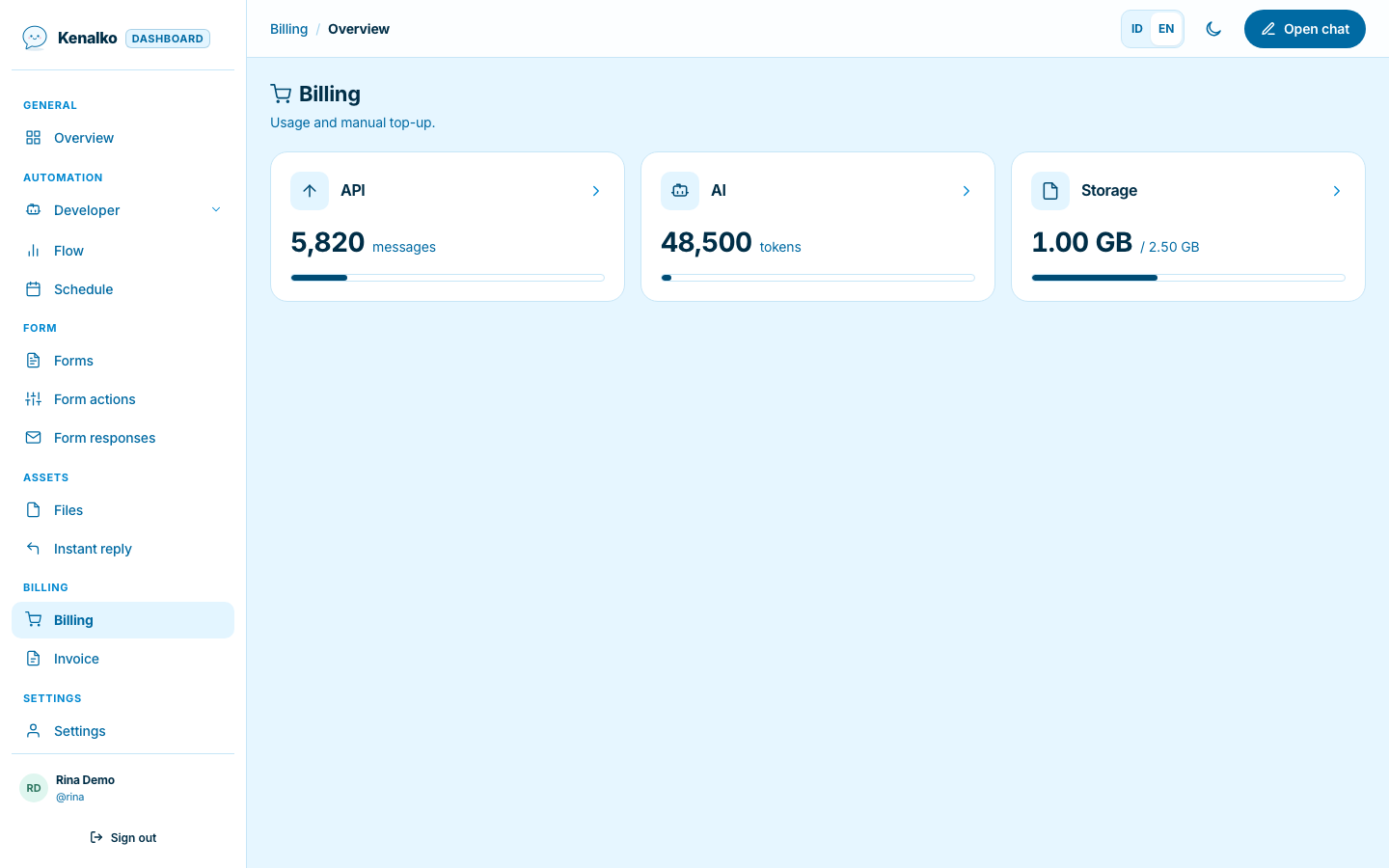
Route /billing — demo screenshot (product UI).
About this screen
Billing summarizes three quotas: API send (automation/API messages), AI (Brain tokens for @ai), and Storage (Files and saved attachments).
Each card opens a detail page — top up or subscribe there before manual-transfer checkout.
Figures match Overview widgets; refresh after an approved payment.
Steps
- Sidebar Billing — read the three cards.
- Tap API send, AI, or Storage as needed.
- After paying, check Invoice or return to the card for updated meters.
Screen areas
Nav
- Sidebar Billing
Header
- Quota overview subtitle
Card grid
- API send — messages left (free+paid), meter, chevron →
/billing/api - AI — Brain tokens remaining →
/billing/ai - Storage — usage vs capacity →
/billing/storage - Form submissions — active submissions vs capacity (1,000 free + subscription) →
/billing/forms
Auto top-up
The Auto top-up from wallet block (below wallet top-up): one card with five product rows (icon + per-row toggle). When on, set thresholds and purchase amounts; storage / forms / app plans include optional auto-pay renewal invoice. Save from the card footer. When available balance is sufficient, Kenalko debits the wallet immediately and sends a single paid/purchased notification (no duplicate new-invoice alert). When balance is insufficient, a new-invoice or low-quota notification is sent and pending auto-renewals/upgrades run automatically as soon as a wallet top-up is approved.
Loading
- Placeholder while
billing.load
Index: Pages overview.