List & manage
Upcoming and Past tabs, schedule detail, Send now, Cancel, Scheduled/Sent/Cancelled status.
The Schedule page lists all scheduled messages in two tabs — Upcoming (not sent yet) and Past (history). Tap a row for Preview; rows still Scheduled can use Send now or Cancel schedule.
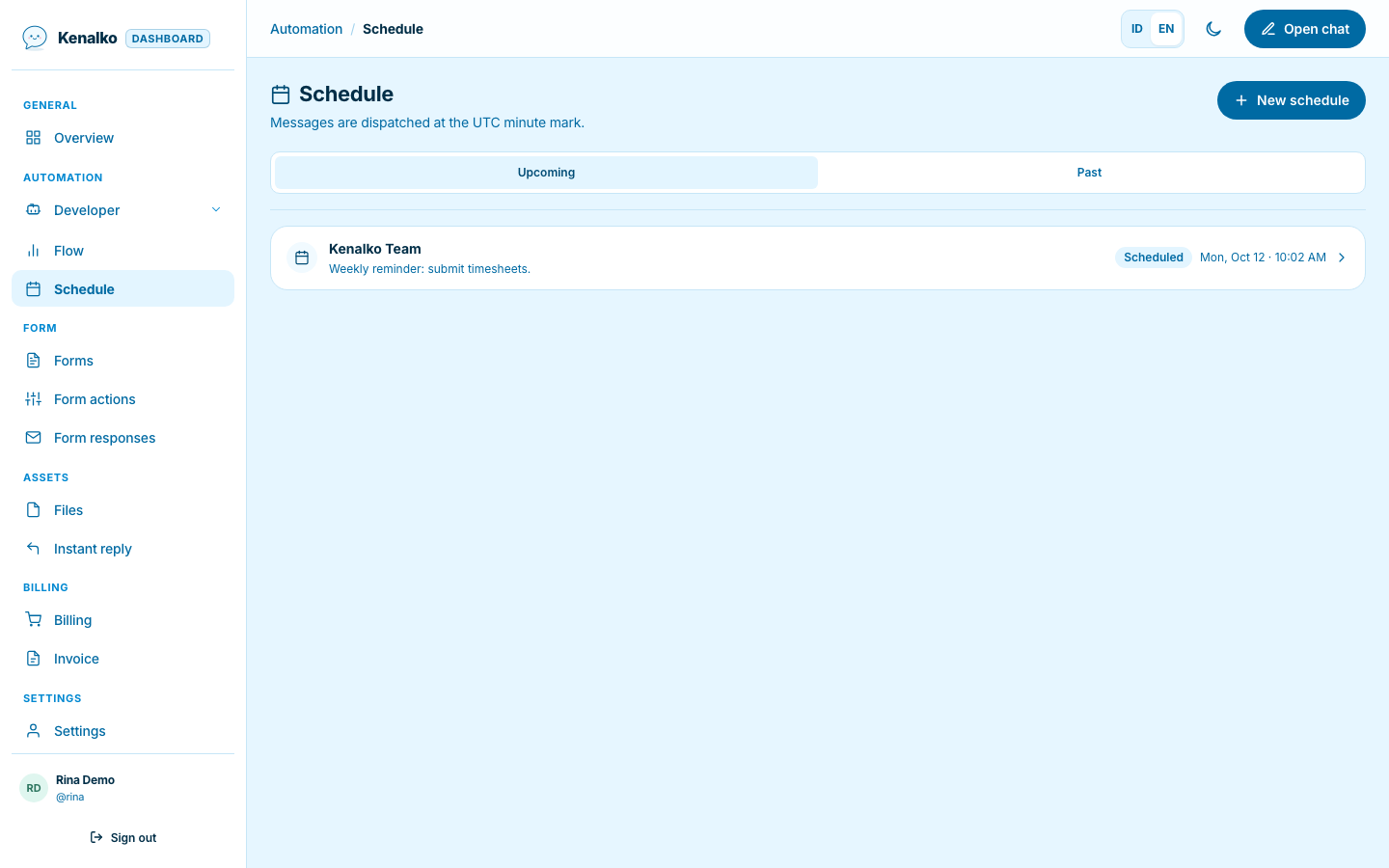
Upcoming — scroll to load more; tap a row for detail.
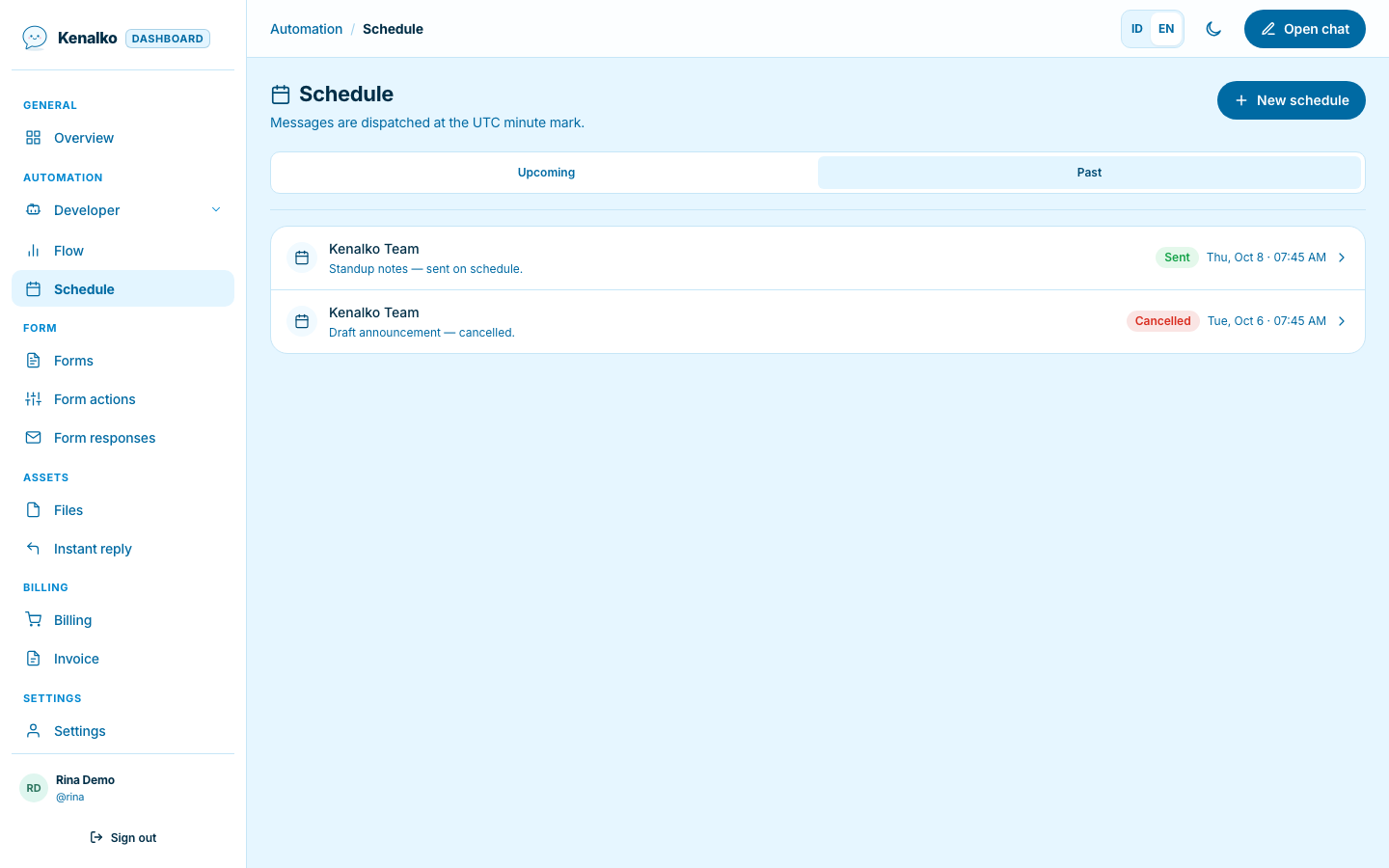
Past tab — Sent / Cancelled badges; read-only (no reschedule).
Step by step
- 1Open Schedule
Sidebar → Schedule. Page subtitle reminds times are UTC.
- 2Pick a tab
Upcoming for pending; Past for history.
- 3Tap a row
Detail overlay: destination meta, bubble Preview, status.
- 4Pending actions
Send now or Cancel schedule → confirm dialog → proceed or Keep schedule / dismiss.
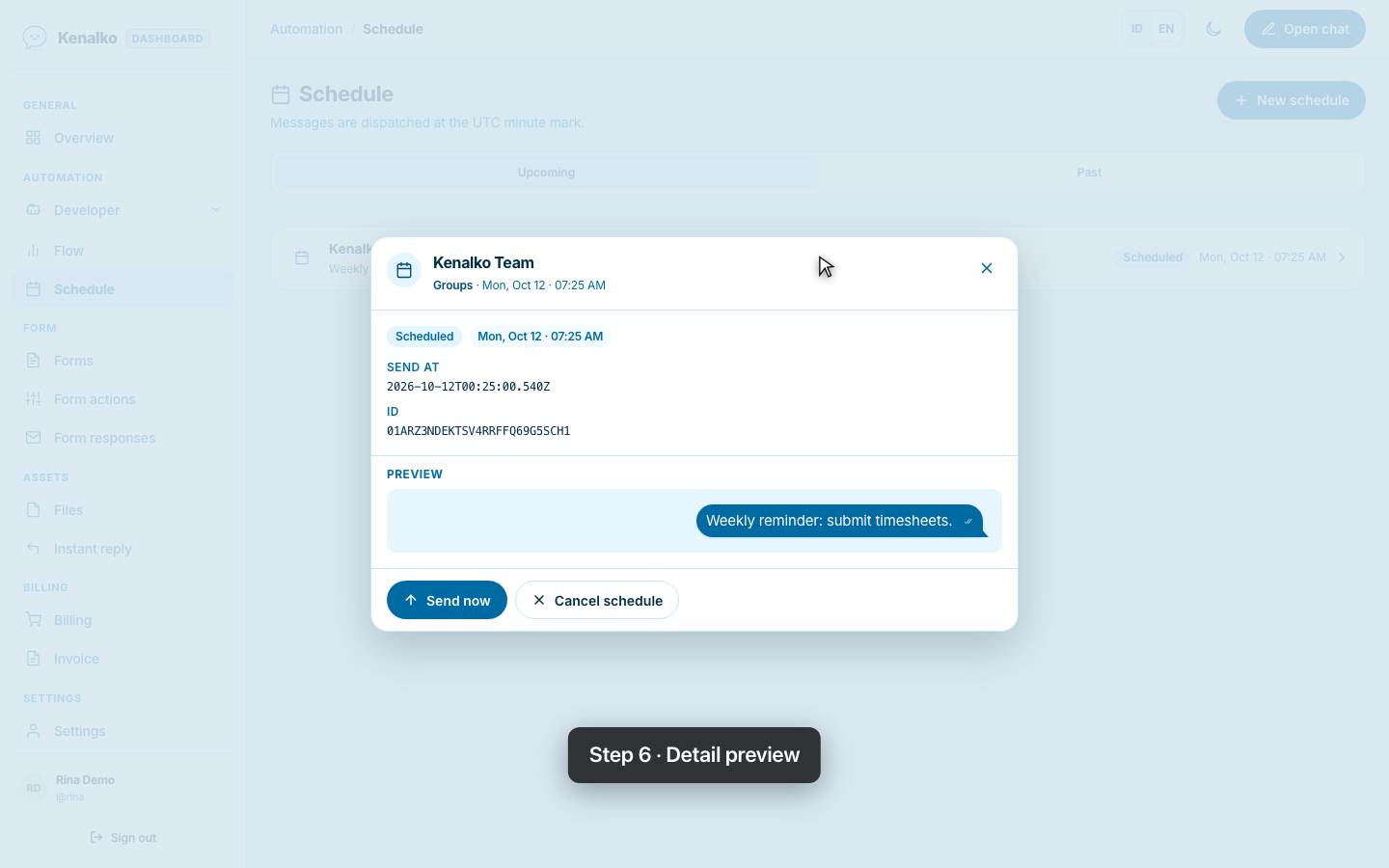
Scheduled detail — preview + Send now / Cancel schedule footer.
List tabs
| Tab | Contents |
|---|---|
| Upcoming | Waiting to fire — sorted by send time. Empty: No upcoming schedules + tap + hint. |
| Past | History — sent or cancelled (and failed rows when present). Empty: No past schedules. |
Each row shows destination summary, snippet, and Send at (UTC).
Confirm dialogs
| Title / action | Meaning |
|---|---|
| Send message now? | Sends immediately instead of waiting for the scheduled time. |
| Cancel schedule? | Stops auto-send; status becomes Cancelled. |
| Keep schedule | Close the dialog without changing the schedule. |
API send quota is deducted on successful delivery — see Quota & attachments.
Status labels
| Label | Meaning |
|---|---|
| Scheduled | Waiting for send time. |
| Sent | Delivered to the destination chat. |
| Cancelled | You cancelled before fire. |
No schedule composer in chat web/mobile — manage only on dashboard Schedule. Create new: Create a schedule.