Forms
Screen reference — /forms (dashboard).
Form library (/forms) — design chat form cards; New form; field editor + send options.
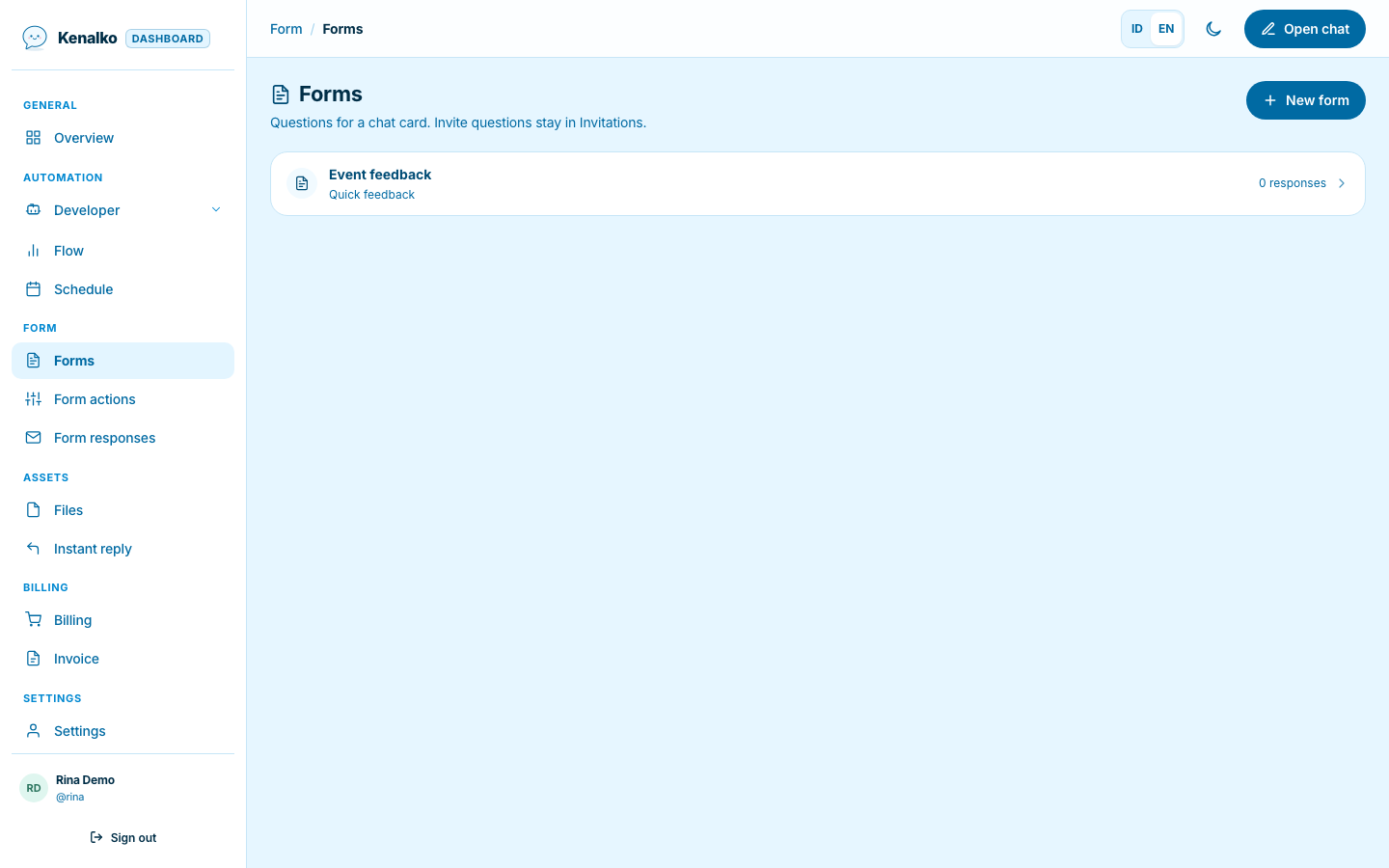
Route /forms — demo screenshot (product UI).
About this screen
Form library (/forms) is where you design form cards before sending them in chat — not the answer inbox (Form responses) and not guest invite forms (/invite).
Form names must be unique per account. Write bubble posts answers as Q/A text in the thread; turn it off if the interactive card is enough.
For supported fields, Default value can use a fixed value, the filler’s latest answer from another form, a file from the Files library, or From Flow variable (map the value on the Flow Send → Form step). Choose Fixed when the filler must not change that preset in the card.
After saving, send from chat web/mobile: Attach → Form → pick the form name.
Steps
- Sidebar Forms → Forms, tap New form.
- Enter name, intro message, add fields (type + required/editable), then set defaults if needed.
- Set Write bubble / Once as needed.
- Save — the form appears in the library and chat picker.
- Optional: Forms → Form actions for Sequence/HTTP after submit.
Note:
- **File** fields follow attachment quota; guest invite forms are not edited here.
Screen areas
Nav
- Sidebar Forms → Forms (library)
- Siblings: Form actions, Form responses
Header
- New form (primary)
List
- Card per form (name, snippet, submission count)
- Tap card → editor overlay
Editor overlay
- Name + intro message
- Fields: types (text, select, file, …), required, Editable (amendable)
- Default value: fixed value, from another form, or from the Files library; Fixed locks the preset in the card
- Toggles Write bubble (Q/A in chat), Once, allow submitter delete, Permanent submission (or temporary retention 1 hour / 1 day / 7 days, default 1 day)
- Save / Delete form (confirmation dialog includes Export submissions CSV before deleting the form and all its submissions)
Index: Pages overview.