Settings
Screen reference — /account (dashboard).
1 min read
Settings (/account) — profile, linked devices; Profile / Security tabs; header Log out.
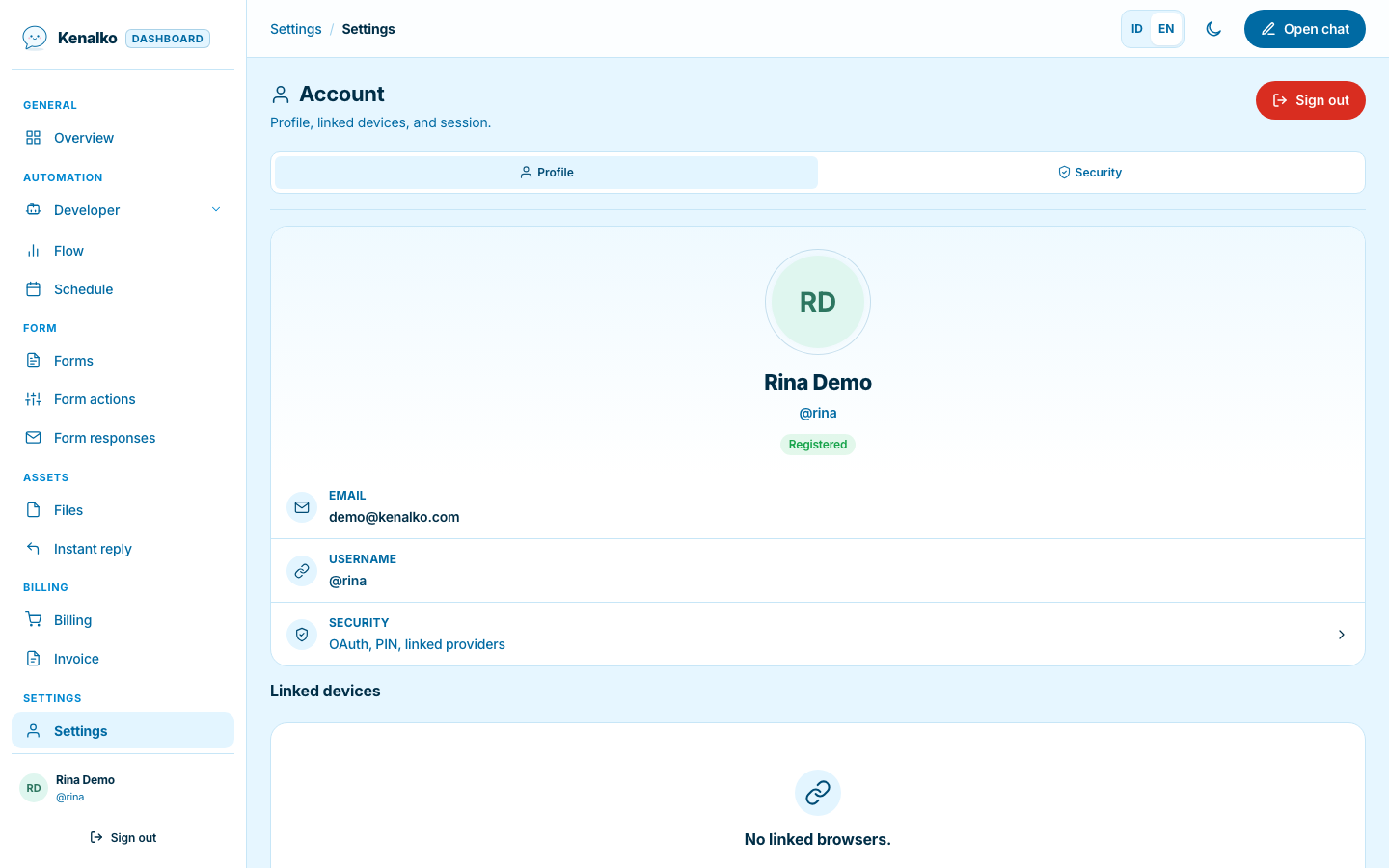
Route /account — demo screenshot (product UI).
About this screen
Dashboard Settings shows identity, email, @username, and linked devices (chat/web sessions that signed in).
Profile photo is view-only — change avatar under chat Profile (web/mobile).
Header Log out ends the dashboard session only; use Log out device for remote chat sessions.
Steps
- Sidebar Settings — Profile tab.
- Review email/username; tap avatar to preview.
- Scroll Linked devices → Log out device for suspicious sessions.
- Log out only to close dashboard in this browser.
Screen areas
Nav
- Sidebar Settings
Header
- Settings icon/title
- Log out → confirm overlay
Toolbar
- Profile | Security chips
Profile card
- Avatar (tap → lightbox; change photo on chat apps)
- Name, @username, registered/admin badge
- Email + username rows
- Security link row →
/account/security
Linked devices
- Count badge + online count
- Per device: name, last seen, online/offline
- Log out device (remote)
Index: Pages overview.