Notifications
Understand mobile notifications and per-room notification settings.
Notifications help you see messages and connection requests when you are not in chat. FCM push is on the mobile app; chat web can play an alert when the tab is hidden — no system push.
If a notification is delayed or does not appear because of the network, device permissions, or operating-system conditions, the message remains stored and appears when the app reconnects and synchronizes.
Push on mobile
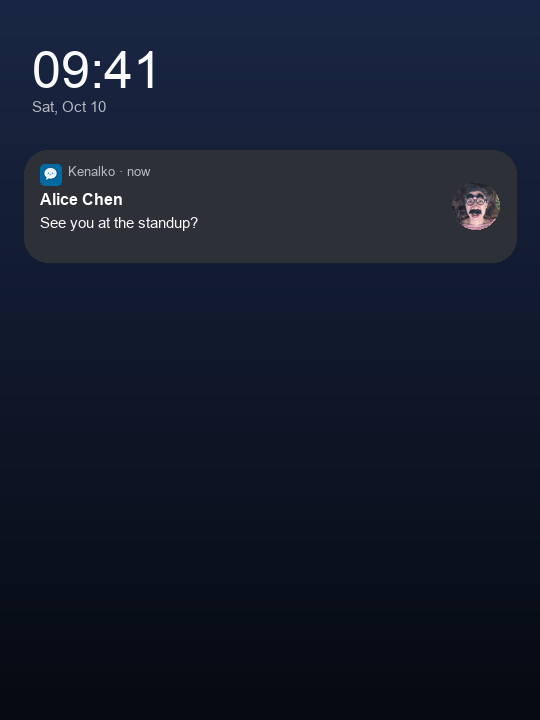
Example Android tray: the real Kenalko app icon, title = sender name (1:1), text = message preview; photo on the right is the sender avatar (FCM notification.image). Tap → open room; connection requests → Contacts → Requests → Incoming.
When the mobile app has no live connection:
- Personal chat — push automatically for incoming messages (no per-room toggle).
- Groups and channels — push only after you enable Offline notifications in the conversation menu.
Enable offline notifications (group / channel)
- 1Open the room
The group or channel you want while offline.
- 2Conversation menu
Header menu on the thread.
- 3Offline notifications
Tap to enable. Groups/channels default to off.
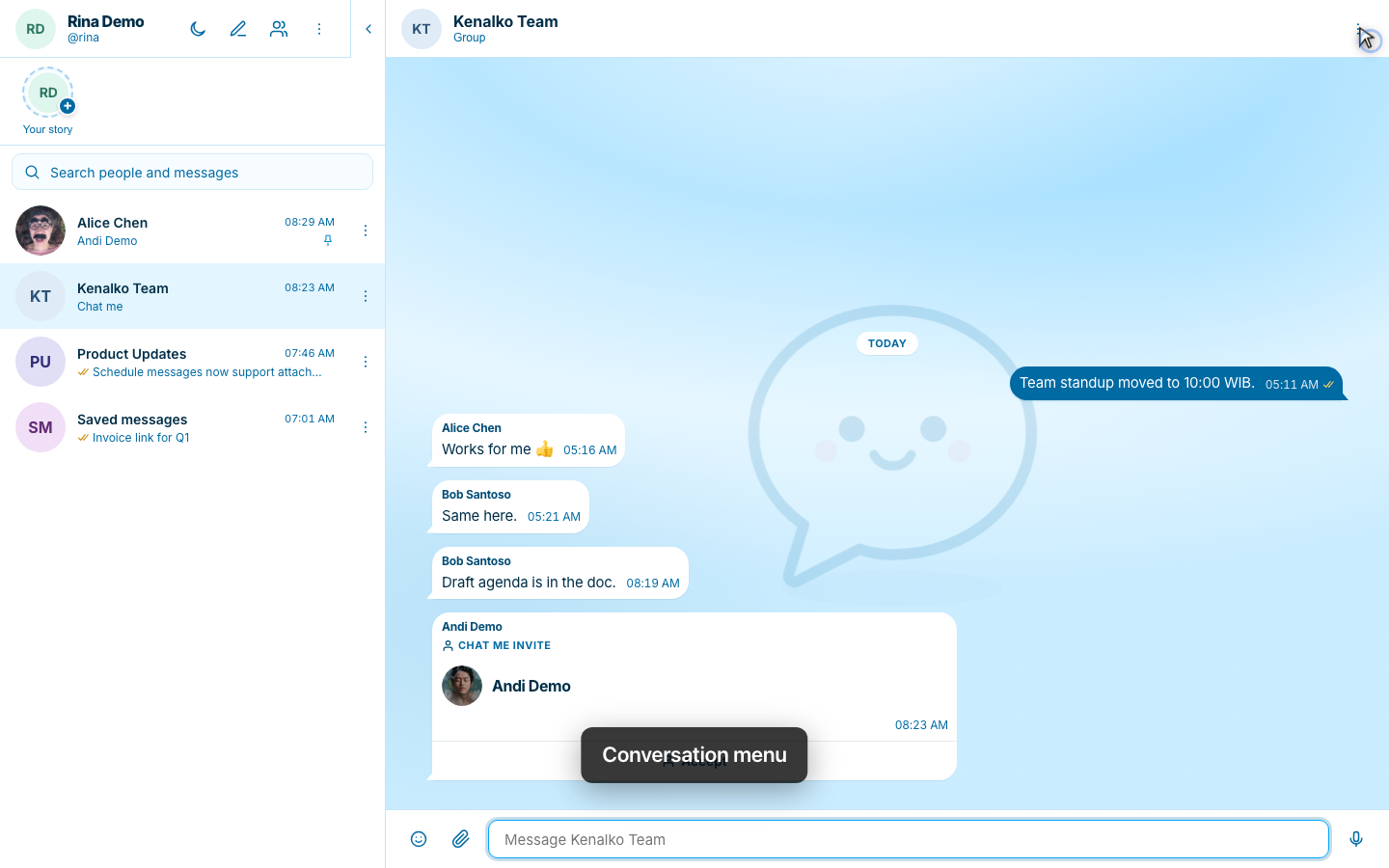
Same item on web and mobile. When enabled, the label becomes Turn off offline notifications.
Step-by-step video (web demo): open group → conversation menu → enable offline notifications. The tray image above shows a lock-screen example on phone.
Opt-in lasts 7 days and extends when you open the room while still enabled. If you do not open the room for 7 days, the toggle turns off again.
When you tap a notification
- Message notification → opens that room.
- Connection request → Requests → Incoming.
- If the app must sync, wait until the thread finishes loading.
For language, security, and on-device accounts, open Settings.